
This article covers 20 beginner-friendly Home Assistant automations, organized into five categories: lighting, security and alerts, climate and energy, notifications and reminders, and morning and evening routines. Each automation includes a plain-language explanation of how it works and a complete YAML example written in the latest Home Assistant format. Where relevant, the actual devices used at SmartHomeScene are linked so you know exactly what hardware makes each one run.
The best automations are almost always the simple ones. The kind that work invisibly, that your family takes for granted, and that you stop noticing after a week. Where automations have two or more triggers that do opposite things, trigger IDs are used to keep everything in a single automation rather than splitting it into two.
If you came here looking for a simple way to get started with Home Assistant, my Home Assistant Essentials guide is worth reading before diving in here.
Lighting Automations
Lighting is where most people start, and for good reason. It is the most visible category, the easiest to set up, and the one that makes guests ask how you did it. These five automations cover the most basic, yet useful lighting scenarios any beginner should have running. Or at least, this is where you should start.
Turn Lights On at Sunset and Off at Sunrise
This is the automation that never gets turned off in my own home. It runs every single day without any input, and once it is set up, you stop thinking about outdoor and hallway lights entirely. Home Assistant has a built-in sun entity that tracks your local sunset and sunrise times automatically, adjusting throughout the year.
The automation below turns my outdoor lights on 30 minutes before sunset and off at sunrise. The offset is optional, but useful for lights you want on before it gets dark.
alias: Lights - Sunset On / Sunrise Off
description: Turn lights on before sunset and off at sunrise.
triggers:
  - trigger: sun
    event: sunset
    offset: "-00:30:00"
    id: sunset
  - trigger: sun
    event: sunrise
    id: sunrise
actions:
  - choose:
      - conditions:
          - condition: trigger
            id: sunset
        sequence:
          - action: light.turn_on
            target:
              entity_id: light.outdoor_lights
      - conditions:
          - condition: trigger
            id: sunrise
        sequence:
          - action: light.turn_off
            target:
              entity_id: light.outdoor_lights
mode: single
Replace light.outdoor_lights with your own entity. You can add multiple lights to the target list or use an area instead. You can also add a condition that checks whether anyone is home, so the lights only turn on at sunset if someone is actually there rather than running every evening regardless.
Motion-Triggered Lights with Auto Off
A classic for hallways, bathrooms, and utility rooms. The light turns on when motion is detected and turns off automatically after a set delay. The key detail beginners miss is adding a condition to check whether the light is already on, which prevents the timer from resetting every time motion is detected while someone is already in the room.
alias: Lights - Motion Triggered with Auto Off
description: Turn on lights on motion, turn off after no motion for 3 minutes.
triggers:
  - trigger: state
    entity_id: binary_sensor.hallway_motion
    to: "on"
actions:
  - action: light.turn_on
    target:
      entity_id: light.hallway
  - wait_for_trigger:
      - trigger: state
        entity_id: binary_sensor.hallway_motion
        to: "off"
        for:
          minutes: 3
  - action: light.turn_off
    target:
      entity_id: light.hallway
mode: restart
Setting the mode to restart means the timer resets every time motion is detected, so the light stays on as long as someone is moving around. While I have transitioned to using presence sensors instead of PIR motion sensors like the Aqara P2, this automation is still great to quick-triggers.
Presence-Based Lights When You Are Sitting Still
Standard motion sensors clear presence the moment you stop moving, which causes lights to switch off while you are sitting at a desk or watching TV. This is one of the most frustrating experiences in a smart home, and it is exactly why mmWave radar presence sensors exist.
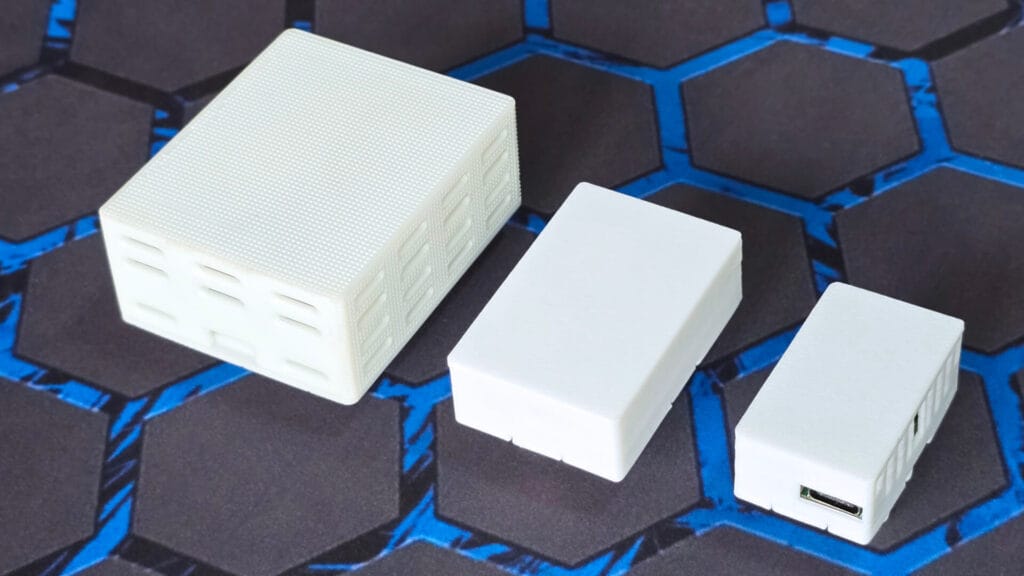
Of all mmWave presence sensors I’ve tested, the Apollo MSR-2 and Apollo R PRO-1 are the only ones I use daily for my own automations. Both run ESPHome firmware and expose a bunch of entities you can work with. The MSR-2 lives on my desk and has been running this automation without a false negative for over a year. If you want a broader look at your options, the Best Presence Sensors for Home Assistant roundup covers everything from budget Zigbee sensors to DIY ESPHome builds.
alias: Lights - Presence Based Office
description: Turn on lights when presence detected, off when room is clear.
triggers:
  - trigger: state
    entity_id: binary_sensor.apollo_msr2_radar_target
    to: "on"
    id: presence_detected
  - trigger: state
    entity_id: binary_sensor.apollo_msr2_radar_target
    to: "off"
    id: presence_cleared
actions:
  - choose:
      - conditions:
          - condition: trigger
            id: presence_detected
        sequence:
          - action: light.turn_on
            target:
              entity_id: light.office_ceiling
            data: {}
      - conditions:
          - condition: trigger
            id: presence_cleared
        sequence:
          - action: light.turn_off
            target:
              entity_id: light.office_ceiling
mode: single
Replace binary_sensor.apollo_msr2_radar_target with the presence entity from whatever sensor you are using. If your sensor supports detection zones, you can take this further by using zone-specific entities to control different lights depending on which part of the room you are in, like a desk lamp for zone 1 and ceiling light for zone 2.
Turn Off All Lights When You Leave Home
Leaving with lights on is one of those things that happens constantly without a smart home. This automation uses Home Assistant’s person entity, which tracks whether you are home based on your phone’s location via the Companion App. When the last person leaves, all lights turn off.
alias: Lights - All Off When Last Person Leaves
description: Turn off all lights when nobody is home.
triggers:
  - trigger: state
    entity_id: zone.home
    to: "0"
actions:
  - action: light.turn_off
    target:
      entity_id: light.all_lights
mode: single
The trigger zone.home changing to "0" means the home zone is empty. light.all_lights assumes you have a light group set up in Home Assistant. If you have not created one yet, go to Settings > Devices > Helpers > Create Helper > Group > Light Group and add all your lights there. The entity ID will match whatever name you give it. You can also expand this automation to turn off the TV, lock the front door, and arm the alarm in the same action sequence, making it a full departure routine rather than just a lights automation.
Turn On a Hallway Light When a Door Opens
A contact sensor on a door gives you an instant trigger for lighting. This automation turns on the hallway light when the front door opens, but only at night so it does not fire in broad daylight. It is one of the most practical automations for entries and is recommended to anyone who has ever walked into a dark hallway carrying bags.
alias: Lights - Hallway On When Front Door Opens
description: Turn on hallway light when front door opens after sunset.
triggers:
  - trigger: state
    entity_id: binary_sensor.front_door_contact
    to: "on"
conditions:
  - condition: sun
    which: below_horizon
actions:
  - action: light.turn_on
    target:
      entity_id: light.hallway
    data:
      brightness_pct: 80
mode: single
I’ve conditioned this simple automation with the current sun state. It needs to be below_horizon for the automation to actually trigger. You can pair this with a wait_for_trigger block to turn the hallway light off again after a few minutes automatically, rather than leaving it on indefinitely. You could also extend the trigger list to include other entry doors so the same automation covers the entire entrance, if its larger.
Security and Alerts
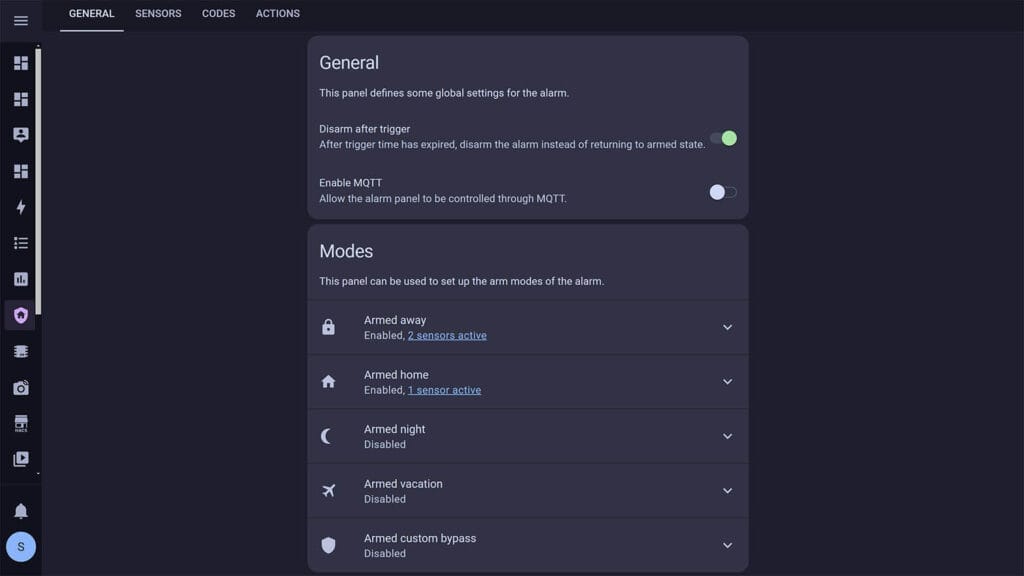
A well-automated home is also a more secure one. These automations do not require a full alarm system. They use sensors you likely already have and deliver notifications directly to your phone via the Home Assistant Companion App. While I wouldn’t recommend it for novice users, Alarmo is a powerful tool that turns all your sensors in a DIY alarm system within Home Assistant.
Notify When a Door or Window is Left Open
This one is rather simple, but very useful. It waits five minutes after a door or window contact sensor opens, checks whether it is still open, and sends a notification if it is. The delay prevents constant pings every time you walk through a door.
alias: Security - Notify Door Left Open
description: Send notification if a door is left open for more than 5 minutes.
triggers:
  - trigger: state
    entity_id: binary_sensor.back_door_contact
    to: "on"
    for:
      minutes: 5
actions:
  - action: notify.mobile_app_your_phone
    data:
      title: "Door Left Open"
      message: "The back door has been open for 5 minutes."
mode: single
Replace binary_sensor.back_door_contact with your contact sensor entity and notify.mobile_app_your_phone with your own notification service, found under Settings > Devices and Services > Mobile App. You can list multiple contact sensors in the trigger entity list so a single automation covers every door and window in the home without duplicating the logic.
Alert When Motion is Detected While You’re Away
When nobody is home and motion fires, you want to know immediately. This automation sends a push notification whenever a motion sensor triggers and the home zone is empty. Pair it with a camera integrated via Frigate for snapshot attachments in the notification if you want to go further.
alias: Security - Motion While Away
description: Notify when motion is detected and nobody is home.
triggers:
  - trigger: state
    entity_id: binary_sensor.outdoor_motion_sensor
    to: "on"
conditions:
  - condition: state
    entity_id: zone.home
    state: "0"
actions:
  - action: notify.mobile_app_your_phone
    data:
      title: "Motion Detected"
      message: "Motion detected outside while you are away."
mode: single
If you have a camera integrated in Home Assistant via Frigate or the native Reolink integration, you can attach a snapshot to the notification so you see exactly what triggered the sensor without needing to open a separate app.
Alert When a Smoke or CO Detector is Triggered
Honestly, this automation should be in every Home Assistant setup. A smart smoke or CO detector that integrates with Home Assistant can send you a notification instantly, even if you are not in the room or not at home.
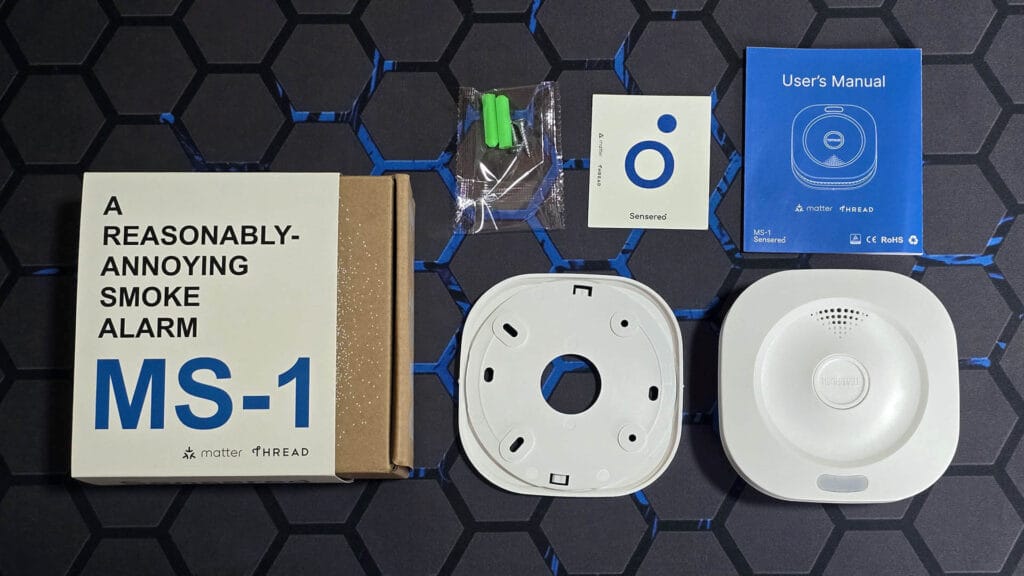
The Sensereo MS-1 is a Matter over Thread smoke alarm I recently reviewed. It integrates natively with Home Assistant via Matter and exposes a clear smoke detected entity. Beyond the notification, this automation turns on a dedicated emergency lights group at full brightness as a visual alert throughout the home.
alias: Security - Smoke Alarm Alert
description: Notify and turn on emergency lights when smoke is detected.
triggers:
  - trigger: state
    entity_id: binary_sensor.sensereo_ms1_smoke_detected
    to: "on"
actions:
  - action: notify.mobile_app_your_phone
    data:
      title: "SMOKE DETECTED"
      message: "Smoke alarm triggered. Check your home immediately."
  - action: light.turn_on
    target:
      entity_id: light.emergency_lights
    data:
      brightness_pct: 100
mode: single
If you have multiple smoke alarms across different rooms, add all of their entities to the trigger list so a single automation covers the entire home.
Get Notified When Someone Rings the Doorbell
A smart doorbell is only as useful as the notification it sends. The Reolink PoE Video Doorbell integrates with Home Assistant via the native Reolink integration and exposes a button press entity directly. This automation fires the moment someone presses the button, sending an immediate notification to your phone.
alias: Security - Doorbell Pressed Notification
description: Notify when the doorbell is pressed.
triggers:
  - trigger: state
    entity_id: binary_sensor.reolink_doorbell_button
    to: "on"
actions:
  - action: notify.mobile_app_your_phone
    data:
      title: "Someone at the Door"
      message: "Your doorbell was just pressed."
mode: single
The exact entity name will depend on how your doorbell is integrated. Check under Settings > Devices to find the correct button entity. A useful extension is adding a second action that sends the notification only when nobody is home, and a different action like flashing a light inside when someone is home, so the response changes based on your presence.
Low Battery Notifications for All Sensors
Battery sensors going dead silently is one of the most common reasons automations fail. This automation fires the moment a specific sensor drops below 20% and sends a notification with a hardcoded device name in the message, so you always know exactly what needs attention. This is especially useful for critical sensors like door contacts, smoke detectors, and presence sensors where a dead battery means a blind spot in your setup.
alias: Security - Low Battery Door Sensor
description: Notify when door sensor battery drops below 20%.
triggers:
  - trigger: numeric_state
    entity_id: sensor.door_sensor_battery
    below: 20
actions:
  - action: notify.mobile_app_your_phone
    data:
      title: "Low Battery"
      message: "Door sensor battery is below 20%. Please replace it."
mode: single
Duplicate this automation for every sensor you want to track, changing the entity ID and message each time. You can lower the threshold to 10% if you prefer fewer notifications and are comfortable replacing batteries closer to the end of their life. If you are looking to capture all sensors in a single automation, check out this Blueprint.
Climate and Energy
These automations handle temperature and energy usage in the background. None of them require interaction once set up, and all of them save real money over time.
Adjust the Thermostat When Nobody is Home
Heating or cooling an empty house is one of the biggest energy wastes a smart home can fix. This automation sets the thermostat to an away temperature when the last person leaves and restores it when someone returns. It works with any thermostat integrated in Home Assistant, including Zigbee TRVs.
alias: Climate - Away Mode
description: Set thermostat to away temperature when nobody is home.
triggers:
  - trigger: state
    entity_id: zone.home
    to: "0"
    id: everyone_left
  - trigger: state
    entity_id: zone.home
    from: "0"
    id: someone_home
actions:
  - choose:
      - conditions:
          - condition: trigger
            id: everyone_left
        sequence:
          - action: climate.set_temperature
            target:
              entity_id: climate.living_room_thermostat
            data:
              temperature: 16
      - conditions:
          - condition: trigger
            id: someone_home
        sequence:
          - action: climate.set_temperature
            target:
              entity_id: climate.living_room_thermostat
            data:
              temperature: 21
mode: single
You can add multiple thermostat entities to each action sequence if you have more than one room with a smart TRV or thermostat. It is also worth adding a time condition to the return trigger so the heating only restores to full temperature during reasonable hours, rather than firing at 3am if someone comes home late.
Close the Blinds When the Sun Gets Too Bright
In summer, direct sun through west-facing windows can push room temperatures up significantly within an hour. This automation monitors an illuminance sensor and closes the blinds once brightness exceeds a threshold, preventing solar gain passively.
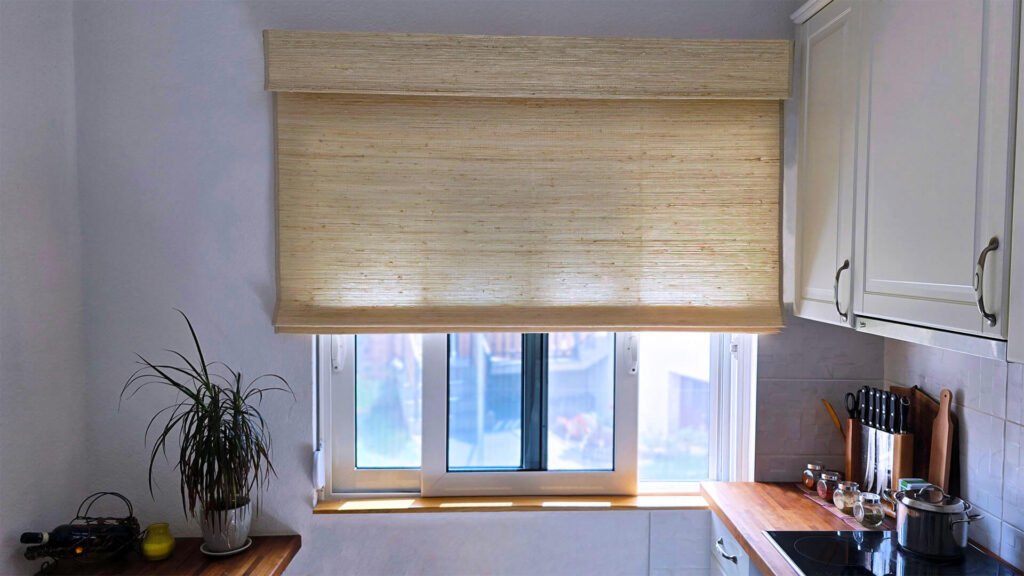
I use the SmartWings Matter over Ethernet PoE Blinds as smart coverings in my home. The SmartWings Matter over Thread Shades are the wireless alternative for anyone without a PoE switch nearby. Both integrate in Home Assistant as a standard cover entity.
alias: Climate - Close Blinds on High Brightness
description: Close blinds when illuminance exceeds threshold during the day.
triggers:
  - trigger: numeric_state
    entity_id:
      - sensor.living_room_window_illuminance
    above: 10000
    for:
      minutes: 10
conditions:
  - condition: time
    after: "10:00:00"
    before: "18:00:00"
actions:
  - action: cover.set_cover_position
    target:
      entity_id: cover.living_room_blinds
    data:
      position: 20
mode: single
The position: 20 value closes the blinds to 20% open, which blocks most direct sunlight while keeping some daylight in. A natural extension is adding a second trigger for when illuminance drops back below the threshold, using trigger IDs to reopen the blinds automatically once the sun moves off the window. To be perfectly clear, I consider illuminance-based automations overrated as there is almost always a better way to achieve the same result.
Turn On the Fan When Temperature Exceeds a Threshold
A simple comfort automation that does not require a smart thermostat. When a temperature sensor in a room hits a set threshold, a smart plug-controlled fan switches on automatically. When it drops back down, the fan turns off.
alias: Climate - Fan On When Hot
description: Turn on fan when room temperature exceeds 26C.
triggers:
  - trigger: numeric_state
    entity_id: sensor.bedroom_temperature
    above: 26
    id: too_hot
  - trigger: numeric_state
    entity_id: sensor.bedroom_temperature
    below: 24
    id: cooled_down
actions:
  - choose:
      - conditions:
          - condition: trigger
            id: too_hot
        sequence:
          - action: switch.turn_on
            target:
              entity_id: switch.bedroom_fan_plug
      - conditions:
          - condition: trigger
            id: cooled_down
        sequence:
          - action: switch.turn_off
            target:
              entity_id: switch.bedroom_fan_plug
mode: single
You can add a time condition to restrict this to daytime hours only, so the fan does not switch on in the middle of the night when a warm room is more likely acceptable. Adding a notification action alongside the fan trigger is also useful if you want to know when a room is overheating.
Turn Off Devices When You Leave Home
Devices left on standby add up energy costs over a month. This automation cuts power to a group of smart plugs the moment the last person leaves home. Paired with the lights off automation above, leaving home becomes a single event that your entire setup responds to.
alias: Climate - Devices Off When Away
description: Turn off smart plugs when nobody is home.
triggers:
  - trigger: state
    entity_id: zone.home
    to: "0"
actions:
  - action: switch.turn_off
    target:
      entity_id:
        - switch.office_desk_plug
        - switch.living_room_tv_plug
        - switch.kitchen_appliance_plug
mode: single
Perhaps consider adding a short delay of a minute or two before the action fires, so a brief accidental zone exit does not cut power to everything. You can also mirror this automation with a return trigger using trigger IDs, restoring specific devices when someone comes home.
Alert When Energy Usage Spikes
Conversely, an unexpected energy spike usually means something is running that should not be, like a heating element stuck on or an appliance left running. This automation monitors a power sensor and notifies you when consumption goes above a defined threshold.
alias: Climate - Energy Spike Alert
description: Notify when power consumption exceeds 3000W.
triggers:
  - trigger: numeric_state
    entity_id: sensor.home_power_consumption
    above: 3000
    for:
      minutes: 10
actions:
  - action: notify.mobile_app_your_phone
    data:
      title: "Energy Spike"
      message: "Power consumption has exceeded 3000W for 10 minutes."
mode: single
The for: minutes: 10 condition prevents false alerts from brief spikes like a kettle boiling. You can create multiple versions of this automation with different thresholds and different notification messages, for example one at 3000W as a heads up and another at 5000W as a serious alert, giving you graduated awareness of your energy usage. I use a similar automation for a vent motor, cause sometimes when the bearings need replacement the energy usage spikes.
Notifications and Reminders
Notify When the Washing Machine Finishes
This automation uses a Zigbee smart plug with energy metering to detect when the washing machine finishes its cycle. The logic monitors the power draw of the plug and triggers when it drops below a threshold after having been above one, which reliably signals the end of a wash cycle without needing any integration with the appliance itself.
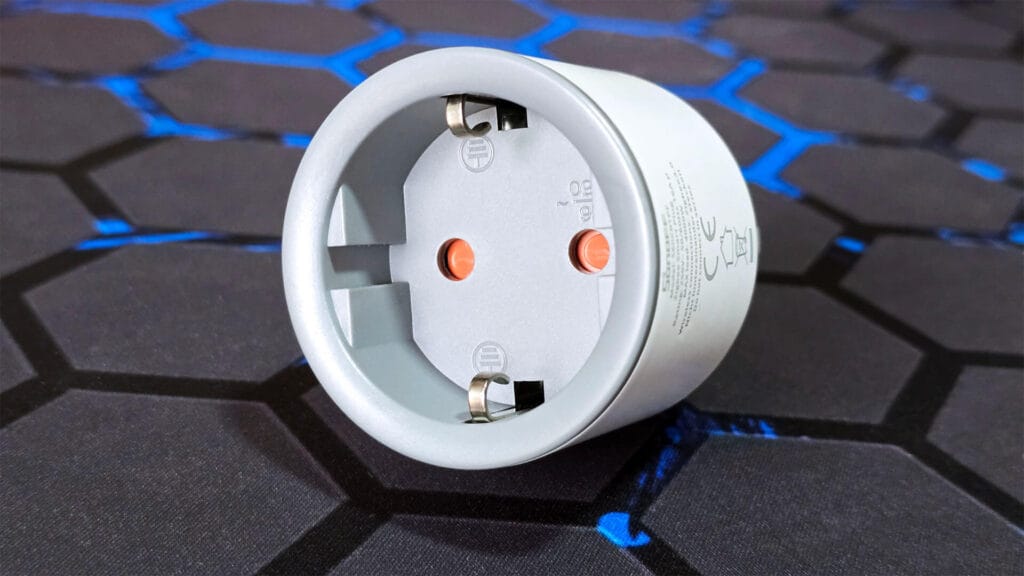
The Sonoff S60ZB Zigbee Smart Plug is great for this. It pairs with ZHA or Zigbee2MQTT directly, reports accurate wattage, and also acts as a Zigbee router. Any smart plug with a power entity will work for this automation.
alias: Notify - Washing Machine Finished
description: Notify when washing machine power drops below threshold after running.
triggers:
  - trigger: numeric_state
    entity_id: sensor.washing_machine_plug_power
    below: 5
    for:
      minutes: 3
actions:
  - action: notify.mobile_app_your_phone
    data:
      title: "Laundry Done"
      message: "The washing machine has finished. Time to hang it up."
mode: single
Set the below threshold based on your machine’s standby wattage. For most machines, anything under 5W for two minutes means the cycle is complete. The for: minutes: 3 delay prevents false triggers mid-cycle. The same logic works identically for a dishwasher or tumble dryer, just duplicate the automation and point it at the relevant plug entity.
Notify When Someone Arrives Home
One of the first things most people set up after installing the Home Assistant Companion App is presence detection. Once your phone is tracked, you can trigger automations the moment you arrive home. This one sends a notification to confirm the arrival, which is also useful for keeping track of when family members get home.
alias: Notify - Someone Arrived Home
description: Send a notification when a person arrives home.
triggers:
  - trigger: state
    entity_id:
      - person.your_name
      - person.partner_name
    from: "not_home"
    to: "home"
actions:
  - action: notify.mobile_app_your_phone
    data:
      title: "Welcome Home"
      message: "{{ trigger.to_state.attributes.friendly_name }} has arrived home."
mode: parallel
Replace person.your_name with your own person entity, found under Settings > People. You can add multiple person entities to the trigger list to cover everyone in the household, or duplicate the automation with different notify targets so each person gets notified when someone else arrives.
Remind You to Take Out the Bins
This is a time-based notification that fires the evening before collection day so you never miss it. Adjust the day and time to match your local collection schedule. If you want to go further, there are community integrations for waste collection APIs in some regions that can make this fully dynamic, but a simple weekly trigger works perfectly for most people.
alias: Notify - Bin Day Reminder
description: Remind to take out bins the evening before collection.
triggers:
  - trigger: time
    at: "20:00:00"
    weekday:
      - sun
actions:
  - action: notify.mobile_app_your_phone
    data:
      title: "Bin Reminder"
      message: "Put the bins out tonight. Collection is tomorrow morning."
mode: single
Change sun to whichever day your bins go out the evening before. Multiple days can be listed if you have different collection schedules. If your municipality provides a waste collection API or calendar feed, you can connect it to Home Assistant and make the trigger fully dynamic so the reminder adjusts automatically around bank holidays.
Morning and Evening Routines
Routines pull multiple automations together into a single trigger. Instead of individual actions scattered across your setup, one event kicks off everything at once. These two are the most practical starting points.
Good Morning Routine (Kettle, Curtains, Music)
This automation fires on weekday mornings and handles the start of the day in one go. It turns on the kettle plug so your coffee is ready, opens the kitchen curtains fully to let natural light in, and starts music on a Sonos speaker. Adjust the time and entities to match your own setup.
alias: Routine - Good Morning
description: Morning routine on weekdays at 7am.
triggers:
  - trigger: time
    at: "07:00:00"
    weekday:
      - mon
      - tue
      - wed
      - thu
      - fri
actions:
  - action: switch.turn_on
    target:
      entity_id: switch.kettle_plug
    data: {}
  - action: cover.set_cover_position
    target:
      entity_id: cover.kitchen_curtains
    data:
      position: 100
  - action: media_player.play_media
    target:
      entity_id: media_player.sonos_kitchen
    data:
      media:
        media_content_id: your_playlist_url
        media_content_type: music
        metadata: {}
mode: single
A natural upgrade is replacing the fixed time trigger with your phone’s next alarm sensor from the Home Assistant Companion App, so the routine fires relative to when you actually need to wake up rather than a fixed time every day.
Good Night Routine (Lights Off, TV Off, Blinds Closed)
The last thing before bed. This automation turns off all lights, switches off the TV, and closes all blinds in one go. Trigger it manually from the dashboard, with a voice command, or at a fixed time if your schedule is consistent.
alias: Routine - Good Night
description: Turn off lights, TV and close all blinds at bedtime.
triggers:
  - trigger: time
    at: "23:00:00"
actions:
  - action: light.turn_off
    target:
      entity_id: light.all_lights
  - action: switch.turn_off
    target:
      entity_id: switch.tv_plug
  - action: cover.set_cover_position
    target:
      entity_id: cover.all_blinds
    data:
      position: 0
mode: single
If your TV is integrated directly in Home Assistant rather than via a smart plug, swap switch.turn_off for media_player.turn_off targeting your TV entity instead. You can also add a voice command trigger alongside the time trigger so the routine fires whenever you say goodnight, not just at a fixed hour.
Summary
These 20 automations cover the most impactful things Home Assistant can do for a new user. None of them require advanced YAML knowledge, custom components, or complex conditions. They are a foundation you can build on as your setup grows.
If you are still deciding which Zigbee devices to use for sensors and plugs, start with choosing a good Zigbee coordinator. If you already have a Zigbee network, check out the guide for building a robust and stable Zigbee network.