

Introduction
If you’ve been following Matter development, you are familiar with the communication protocols it supports: Wi-Fi, Ethernet, Thread and Bluetooth, primarily used for pairing and onboarding. While Wi-Fi and Ethernet devices will work with your Matter server by simply adding them to your local network, you need a Thread Border Router (like the SLZB-06M) to form a Thread network.
Since Zigbee is not part of the Matter specification and it’s basically succeeded by Thread, your Zigbee devices cannot be paired to a Matter controller directly. Which makes things really confusing when you come across a Zigbee device that says it supports Matter (Aqara being one example).
What this essentially means is that you need to pair your Zigbee device with the company hub and expose it as a Matter device through their app/platform. I recently did this with the SwitchBot Lock Pro and some Zigbee devices, and it works great. However, it does require you to use the company’s hub and proprietary app, which is something we, as Open Home enthusiasts, are trying to avoid at all costs.
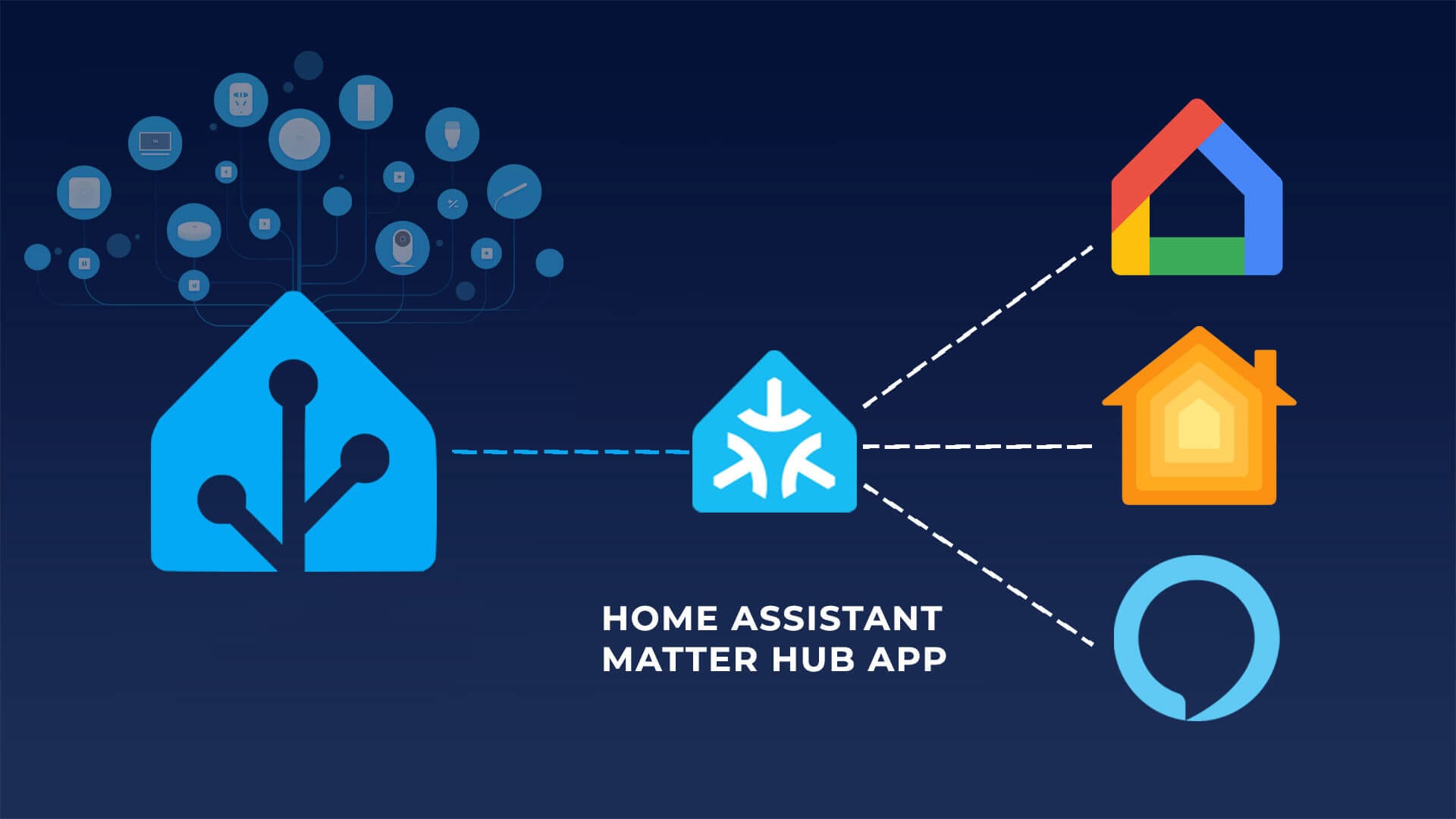
In this article, I’m sharing a way to expose devices you have paired in Home Assistant as a Matter devices. In other words, if it works with Home Assistant without proprietary hubs and bridges, it can be exposed as a Matter device and be used with other Matter controllers like Google Home, Apple Homekit or Amazon Alexa.
About Home Assistant Matter Hub App
This guide is based on Home-Assistant-Matter-Hub by RiDDiX, a project that allows you to share all your Matter devices with other Matter controllers without re-pairing and sharing them individually. Home Assistant Matter Hub (HAMH) is an addon for Home Assistant that acts as a Matter bridge, exposing Home Assistant devices to Matter controllers (Alexa, Apple Home, Google Home) via local communication. No cloud or custom skills are required.
This is a fork of the original made by t0bst4r, which was discontinued in January 2026. If you are running the previous add-on, you can follow this migration guide without losing your Matter fabric connections.
You can setup and deploy Home Assistant Matter Hub as an add-on or a docker container. It supports Server Mode for Robot Vacuums, which is a requirement for using robovacs in Apple Home and Alexa.
In this guide, I’m deploying a HAMH as an add-on directly in Home Assistant, designed to effortlessly expose entities as Matter devices. This is by far the easiest way to achieve this, but it does require Home Assistant OS installed and running. Props to the awesome people who made this possible.
Who is this for?
Ever since I installed it, I’ve thought about the use cases for Home Assistant Matter Hub. While it started as a community project (originally Matter Bridge), it has matured into a highly practical tool that enables use cases standard bridges can’t touch. These are best explained through examples.
Let’s say you have a Zigbee device that’s never going to get native Matter support. It works with Home Assistant either through ZHA or Zigbee2MQTT, but it cannot be shared between Matter controllers. Even using the proprietary brand hub won’t allow you to share it as a Matter device if the manufacturer chose not to update your particular model.
Well, with Home Assistant Matter Hub, you can expose it as a Matter device in any ecosystem you want. This process does not care which communication protocol the device uses, as Home Assistant acts as the bridge between your Zigbee device and other Matter controllers.
As another example, let’s say you do have a Zigbee device that can be bridged to Matter, but it requires you to use the company hub. The device already works with Home Assistant via Z2M or ZHA, but you want to share it via Matter to other controllers without adding another hub to your shelf. Deploying Home Assistant Matter Hub allows you to do just that and skip over the need to use the proprietary brand hub.
But perhaps the most interesting use case of all is the ability to bridge the gap to Matter for your DIY devices. For example, ESPHome devices can be exposed as Matter devices through the addon and shared between controllers like Google Home, Apple HomeKit or Amazon Alexa.
There are probably other use cases I’m overlooking right now, but hopefully, I’ve made my point: Your Home Assistant devices and entities are converted to Matter devices with Home Assistant Matter Hub.
Installing Home Assistant Matter Hub
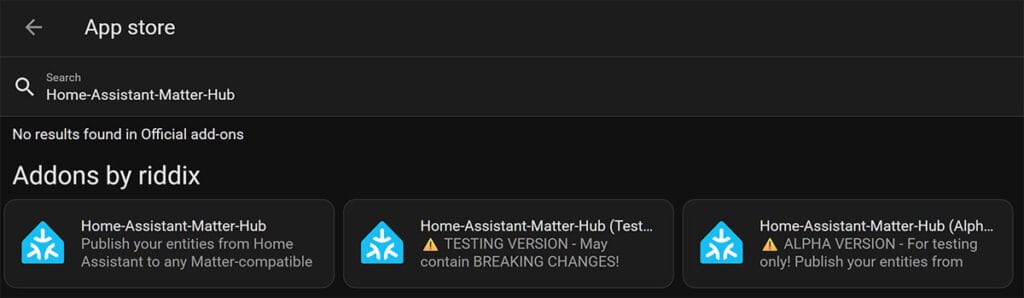
To install the Home Assistant Matter Hub add-on (app), you need to add the custom repository in Home Assistant first. Navigate to Settings > Apps > Install app > Three dots in corner > Repositories and add the following repo:
https://github.com/RiDDiX/home-assistant-addons- Install the Add-on:
- Refresh the page or use the search bar to find Home Assistant Matter Hub.
- Select the stable version, as test and alpha can contain bugs and breaking changes
- Click on it and press Install.
- Configuration:
- Once installed, navigate to the Configuration tab.
- Here you can set the Log Level (useful for debugging).
- Start the Add-on:
- Go back to the Info tab.
- Toggle Start on boot, Watchdog and Show in sidebar
- Press Start.
- Open the Web UI:
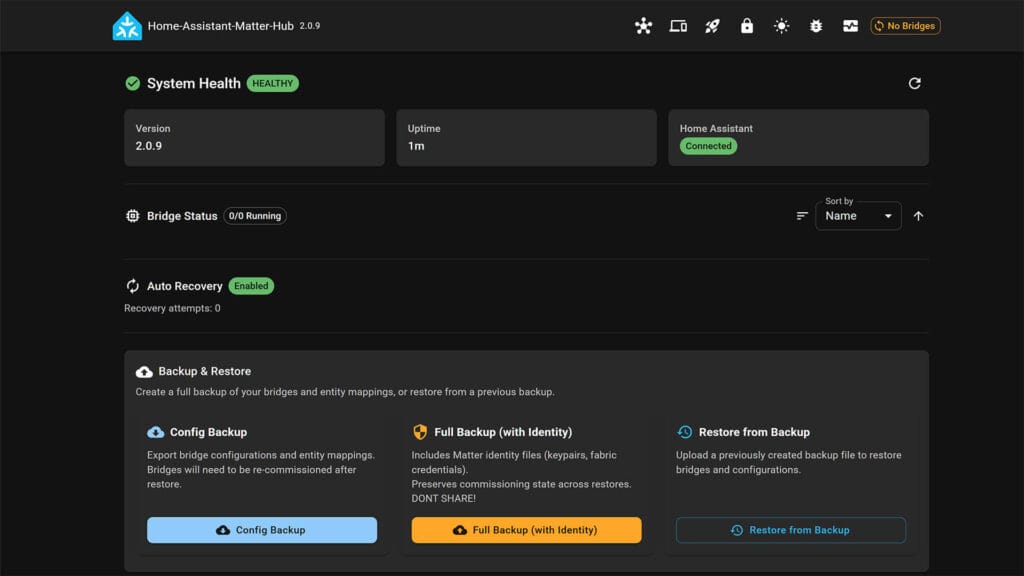
- Once started, click Open Web UI to access the hub’s dashboard.
- Done!
Note: If you are not running Home Assistant OS, you can also install this project as a Docker container. The image is available at ghcr.io/riddix/home-assistant-matter-hub:latest and runs with full functionality, including the Web UI on port 8482.
Creating a Matter Bridge and Sharing Devices
Once you access the HAMH web UI, you will be presented with a nice, clean control dashboard. You can check active matter bridges, view logs, check fabric health, paired controllers and even backup and restore your configuration.
To actually share a Home Assistant device via Matter, you need to create what’s called a bridge in the app. This allows you to pair third-party Matter controllers and use the device with your voice assistant like Google Home, Alexa or Apple Home. You can use the build in wizard which makes things easy and smooth. Here’s how that looks like:
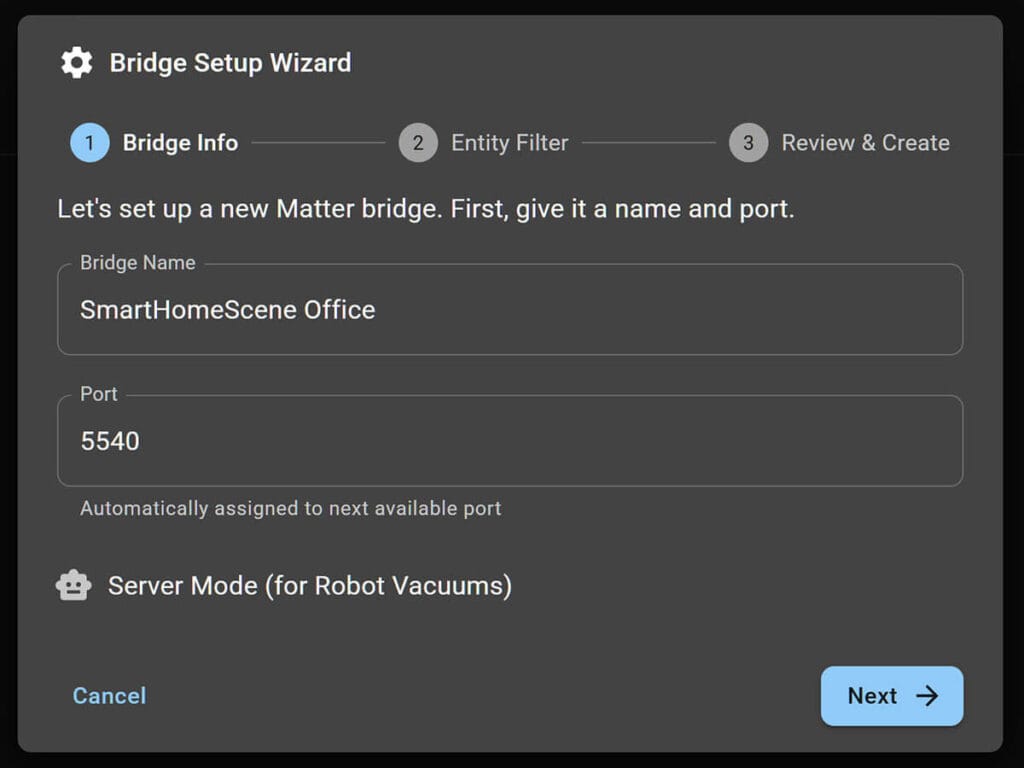
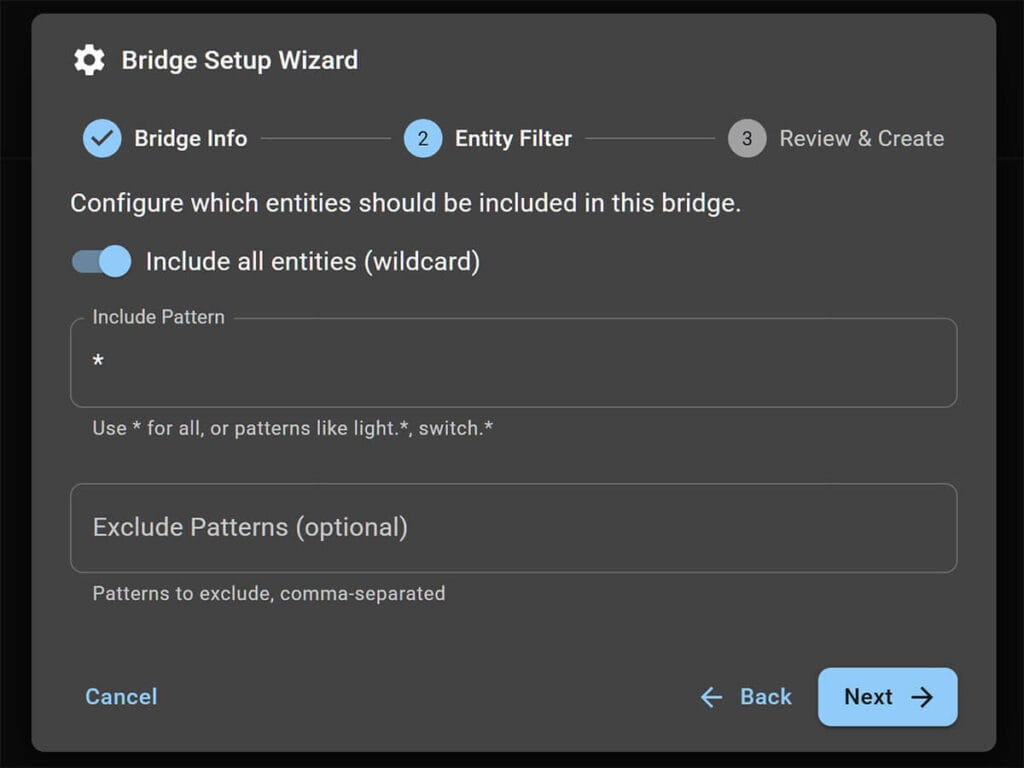
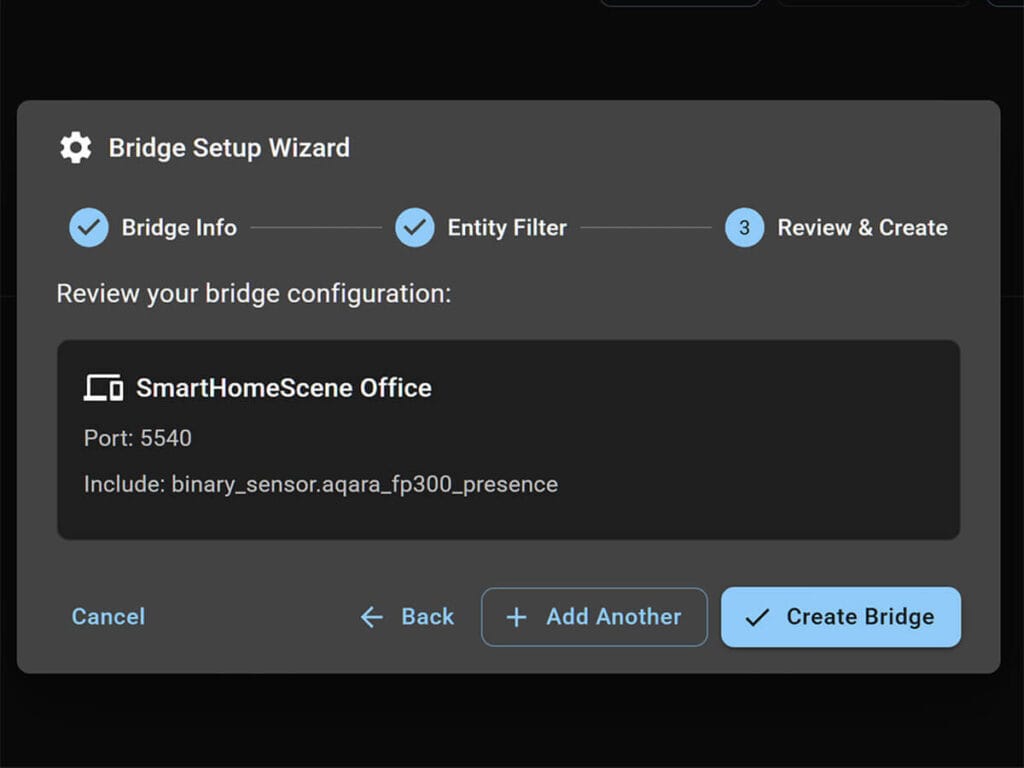
- Name Your Bridge: Assign a custom name to identify the bridge (e.g., “Downstairs Lights”).
- Set the Port: Choose a port for the bridge to communicate on (default is usually fine).
- Include Entities: Select which devices to expose. You have total flexibility here:
- Single Device: Pick specific entities one by one.
- Whole Areas: Select everything in a specific room (e.g., “Living Room”).
- Entity Domains: Include entire categories like
light.*orswitch.*. - Wildcards: Use patterns to match multiple devices automatically.
- Full Export: Expose your entire Home Assistant instance at once.
- Review & Create: Verify your selection and finalize the bridge to generate your pairing code.
Basically, you name your bridge, setup a port, include entities and review and create the bridge with your devices. You can create these bridges however you see fit: by single device, whole areas, entity domains, wildcards and even export your entire Home Assistant instance at once.
Creating a Matter Bridge for Robot Vacuums
If you try to expose a robot vacuum through a standard Matter bridge, you will likely run into issues. Apple Home often shows an “Updating” status or fails to execute Siri commands, while Alexa may not discover the vacuum at all. This happens because these platforms expect robot vacuums to be standalone Matter devices, not sub-devices behind a bridge.
To fix this, Home Assistant Matter Hub includes a specific “Server Mode” for robot vacuums. This feature exposes your vacuum as a standalone Matter accessory, stripping away the bridge “wrapper” and making it fully compatible with Apple Home and Alexa.
- Open the Web UI and start the wizard.
- Enable Server Mode: Check the box labeled “Server Mode” in the wizard.
- Select Device: Add only one vacuum to this bridge.
- NOTE: Server Mode bridges support exactly one device per bridge. If you have two vacuums, you need two separate Server Mode bridges.
- Review & Create: Verify your settings click create bridge.
Once paired, Siri commands like “Hey Siri, start the vacuum” and room selection features will work natively. Your other devices (lights, switches, etc.) should remain on your standard bridge.
Pairing Bridge to Matter Controllers
Once your bridge is running, click on it in the main dashboard to reveal the pairing QR code. Scan this code using your preferred Matter controller (Google Home, Apple Home, Alexa, etc.), just like any other Matter device. Your controller will likely warn you that the device is “Uncertified.” This is expected for custom bridges, simply acknowledge the warning and proceed with the pairing.
Here are a few screenshot from Google Home:
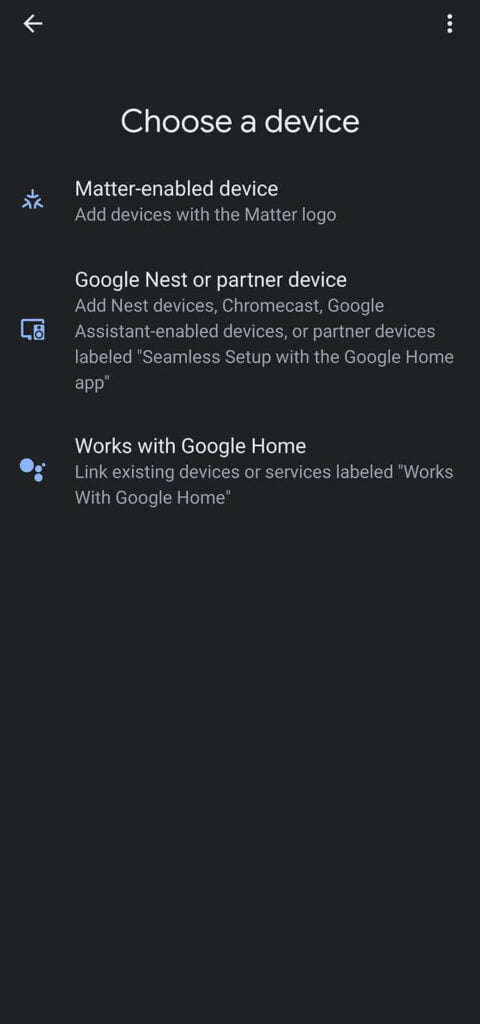
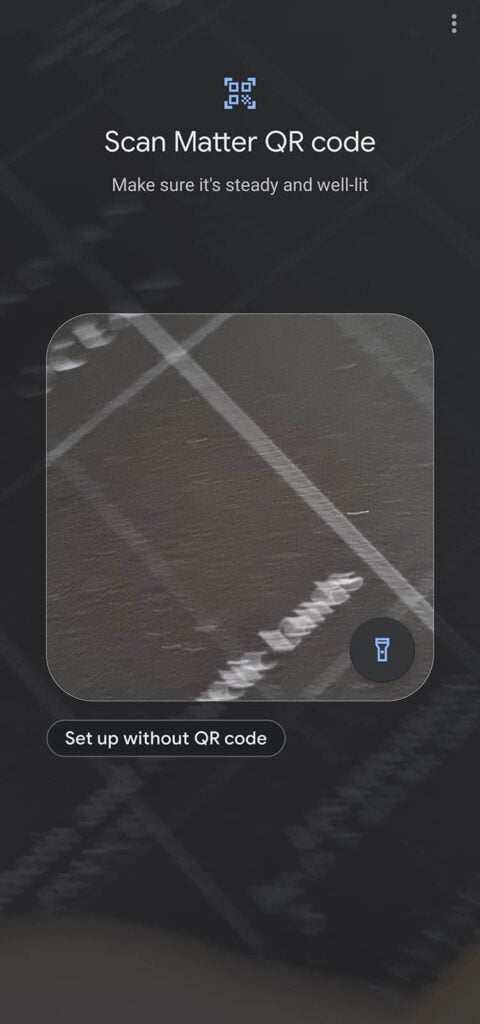

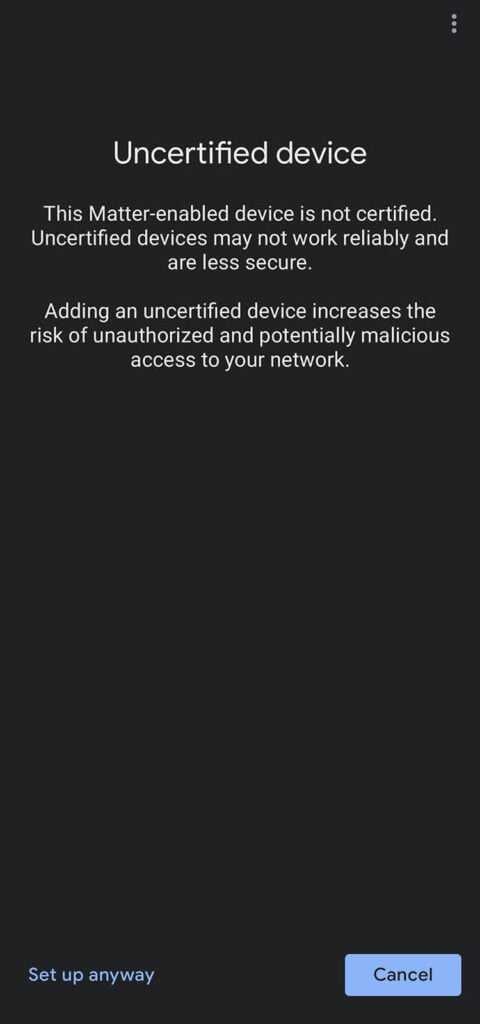
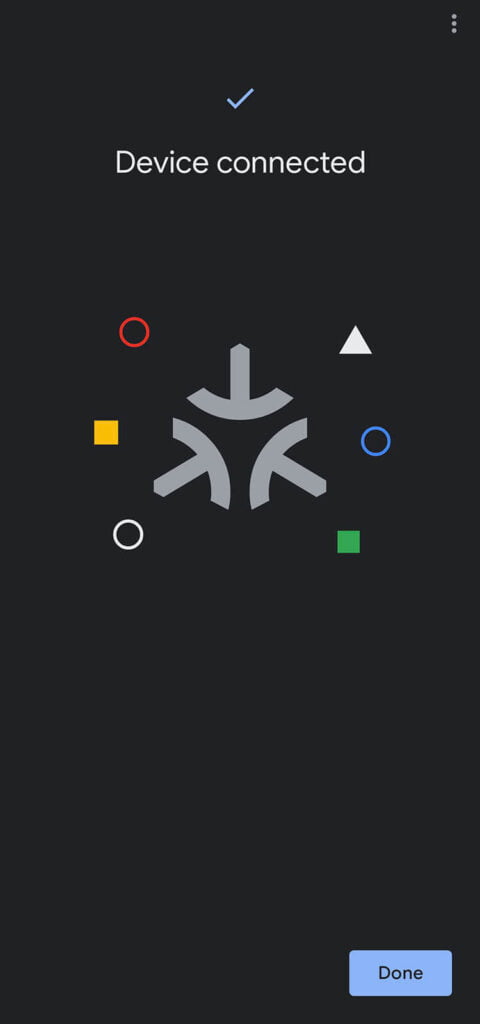
It’s important to note that the initial QR code is single-use. Therefore, once the first pairing is complete, the status will change to “Commissioned” in the Home Assistant Matter Hub App and that specific code cannot be used again. Once your first Matter Controller is connected, it will be listed under Connected Fabrics:
Here’s an image:
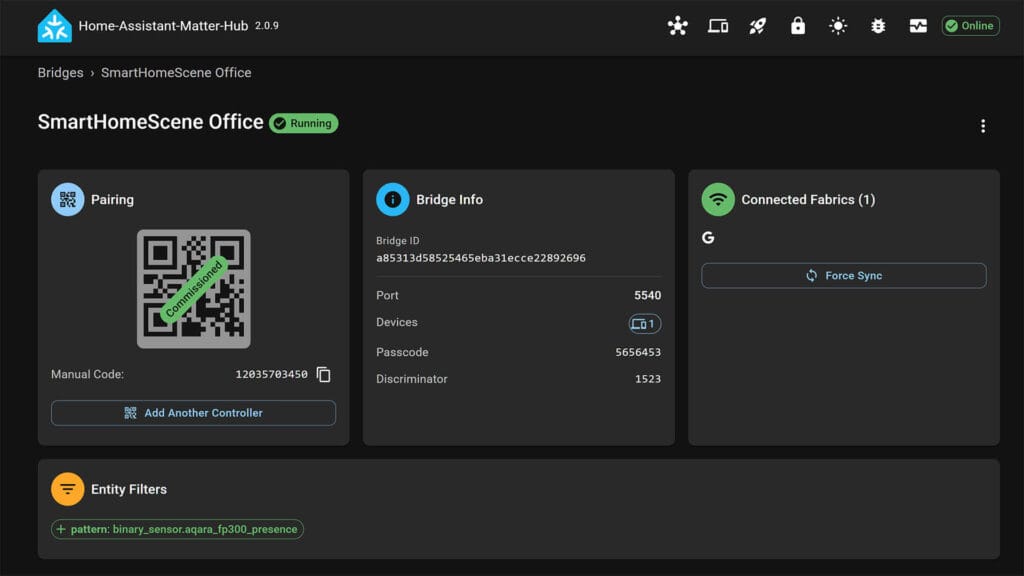
However, Matter supports connecting the same bridge to multiple controllers simultaneously with each controller will have independent control. After successfully connecting the first controller (e.g., Apple Home), locate the Matterhub device in the app. For Alexa and Google Home, it appears as a standalone device, while in Apple Home, it is nested within the Home settings. In the device settings, enable pairing mode to generate a manual pairing code or click Link apps & services in Google Home. This new code can then be used to connect the bridge to a second controller.
Alternatively, you can also create a second bridge in the add-on exposing the same devices to your second Matter controller. You need to set a different port during setup and select what you want to expose. That’s it!
Including or Excluding Devices
You can control exactly which devices are exposed to your Matter fabric by configuring the Filter settings for each bridge. This allows you to create specific bridges for different purposes (e.g., one bridge for lights, another for switches) or simply hide unwanted entities.
The filtering logic works using two lists: Include and Exclude.
- Include: An entity must match at least one rule in this list to be exposed.
- Exclude: If an entity matches any rule in this list, it will be blocked, even if it was included.
You can filter entities using the following criteria:
- Pattern: Matches the Entity ID using wildcards (e.g.,
light.kitchen_*orsensor.*_battery). - Domain: Matches the Home Assistant domain (e.g.,
switch,light,lock). - Platform: Matches the integration providing the entity (e.g.,
hue,sonoff,mqtt). - Label: Matches a Home Assistant Label (e.g.,
matter_exposed).- Note: The label must be assigned to the entity itself, not the device.
- Area: Matches the Home Assistant Area where the device is located (e.g.,
Living Room). - Entity Category: Filters by category, such as
configordiagnostic.
Important: If you change labels or areas in Home Assistant, you may need to reload the bridge or restart the Home Assistant Matter Hub add-on for the changes to take effect.
Configuring Bridge Settings
Because the Matter specification handles device states differently than Home Assistant, you may notice discrepancies when exposing devices to external Matter controllers. This can sometimes result in unintuitive behavior or mismatched values.
Fortunately, the add-on provides several configurable feature flags per bridge to address these nuances and optimize the experience for specific platforms like Alexa, Google Home, or Apple Home:
- Country Code:
An ISO 3166-1 alpha-2 code to represent the country in which the Node is located. Only needed if the commissioning fails due to missing country code. - Do not invert Percentages for Covers:
By default, Matter may interpret cover percentages differently than Home Assistant (where 100% usually means open). Enable this to force the displayed percentage to match what you see in Home Assistant. - Swap Open/Close Commands for Covers:
Swaps the logic for open and close commands. Enable this specifically if your voice commands are reversed (e.g., saying “Close” opens the blinds). This setting affects the open/close action only and does not alter percentage controls. - Include Hidden Entities:
Allows entities that are marked as “hidden” in Home Assistant to be exposed to the Matter fabric. - Alexa: Preserve Brightness on Turn-On:
A workaround for a known Alexa issue where turning on a light resets its brightness to 100%. When enabled, the bridge ignores brightness commands that set lights to 100% immediately following a turn-on event. - Server Mode (for Robot Vacuums):
Exposes the device as a standalone Matter device rather than a bridged device. Important: This is required for Apple Home to properly support Siri voice commands for Robot Vacuums. If enabled, this bridge must contain only the Robot Vacuum device. - Auto Battery Mapping:
Automatically detects battery sensors associated with a parent device in Home Assistant and merges them into the main Matter entity, rather than exposing the battery as a separate device. - Auto Humidity Mapping:
Automatically detects humidity sensors associated with a temperature sensor and merges them to create a combinedTemperatureHumiditySensordevice in Matter. - Auto Force Sync (Google Home & Alexa workaround):
Periodically pushes all device states to connected controllers every 60 seconds. Only enable this if you experience issues where Google Home or Alexa lose subscriptions or show devices as offline/unresponsive after a few hours.
Supported Device Types
The Home Assistant Matter Hub supports a wide range of domains. Most are mapped automatically to their Matter equivalents. By default, these are configured to match the behavior you expect in Home Assistant, minimizing the need for manual configuration. Simply expose your entities, and the Hub will assign the correct Matter device type, from simple switches to complex climate controls.
Here’s what’s supported as of version 2.0.9:
- Automation: Mapped as
OnOffPlugInUnit. - Binary Sensor: Mapped as
ContactSensorby default.- Specific support for:
OnOffSensor,ContactSensor,OccupancySensor,WaterLeakDetector. - Note: Water Leak Detectors are not supported by every controller.
- Specific support for:
- Button: Mapped as
OnOffPluginUnit.- Behavior: Visible as an On/Off switch. When turned on, it automatically turns itself off after 3 seconds.
- Climate: Mapped as
Thermostat.- Note: Matter’s “Auto” mode differs from Home Assistant. In Matter, “Auto” chooses between heat/cool based on local temp (similar to HA’s
heat_cool), whereas HA’s “Auto” usually implies a schedule or AI-driven mode.
- Note: Matter’s “Auto” mode differs from Home Assistant. In Matter, “Auto” chooses between heat/cool based on local temp (similar to HA’s
- Cover: Mapped as
WindowCovering. - Fan: Mapped as
Fan. - Humidifier: Mapped as
OnOffPlugInUnit(with Level Control).- Reason: Matter does not natively support humidifiers yet.
- Input Boolean: Mapped as
OnOffPlugInUnit. - Input Button: Mapped as
OnOffPluginUnit.- Behavior: Same as the standard Button domain (auto-off after 3 seconds).
- Light: Mapped as
OnOffLight,DimmableLight,ColorTemperatureLight, orExtendedColorLight.- Note: The specific type depends on the supported features of the light entity.
- Lock: Mapped as
DoorLock. - Media Player: Mapped as
Speaker.- Warning: Not supported by most controllers. The documentation suggests creating a helper entity (like a template switch) to control media players instead.
- Scene: Mapped as
OnOffPlugInUnit. - Script: Mapped as
OnOffPlugInUnit. - Sensor:
- Supported classes:
TemperatureSensor,HumiditySensor,IlluminanceSensor.
- Supported classes:
- Switch: Mapped as
OnOffPlugInUnit. - Vacuum: Mapped as
RoboticVacuumCleaner.- Restriction: Currently only supported by Apple Home.
- Requirement: The vacuum must be the ONLY device on the bridge for it to work.
Backup and Restore
The Matter Hub includes a built-in backup utility that allows you to save your bridge configurations and entity mappings. This is critical for migrating your setup to a new device or recovering from a system failure without needing to reconfigure every entity from scratch.
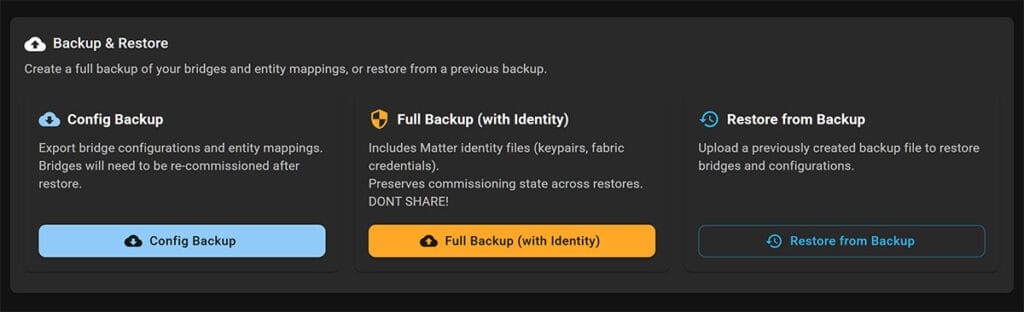
You have two options when creating a backup:
- Config Backup (Safe to Share)
- What it saves: Exports only the bridge configurations (e.g., names, exposed entities, filter rules) and entity mappings.
- Result: After restoring, your settings will be back, but you will need to re-commission (re-pair) your bridges with your Matter controllers (Apple Home, Google Home, etc.).
- Full Backup (with Identity)
- What it saves: Includes everything in the Config Backup plus the sensitive Matter identity files (keypairs and fabric credentials).
- Result: Preserves the commissioning state. After restoring, your bridges will remain connected to your Matter controllers without needing to be re-paired.
- Restore from Backup
- Allows you to upload a previously created backup file (
.json) to immediately restore your bridges and configurations.
- Allows you to upload a previously created backup file (
Final Thoughts
The Home Assistant Matter Hub effectively bridges the gap between a highly custom local smart home and the user-friendly experience of major platforms like Apple Home, Google Home, and Alexa. Instead of relying on cloud integrations or separate bridges for every device, this add-on unifies your entire Home Assistant entity list into a single, local, and lightning-fast Matter accessory.
Huge props to RiDDiX for the incredible work on this project. Navigating the complexities of the Matter specification and mapping it so seamlessly to Home Assistant is a massive technical achievement. Thanks to this add-on, users like us can finally enjoy the best of both worlds: the power of Home Assistant and the convenience of voice assistants your family uses, all running locally.
FAQs
What is the Home Assistant Matter Hub Add-on (App)?
The Home Assistant Matter Hub (HAMH) is an add-on that acts as a local Matter Bridge for your Home Assistant server. It allows you to expose your existing Home Assistant entities (whether they are Zigbee, Z-Wave, WiFi, or DIY ESPHome devices) directly to other Matter ecosystems like Apple Home, Google Home, and Amazon Alexa.
Does this work with Home Assistant Container/Core?
Yes. While the guide focuses on the Add-on for Home Assistant OS, there is a Docker image available (ghcr.io/riddix/home-assistant-matter-hub:latest) that provides full functionality for Container users.
I already paired the bridge to Google Home. How do I add it to Alexa?
The initial QR code from the add-on is single-use. To add a second platform, you must go into the settings of the first app you paired with (e.g., Google Home) and generate a new pairing code from there to share the device with Alexa. Alternatively, you can create a separate bridge just for Alexa.
Why isn’t my Robot Vacuum showing up in Apple Home?
Apple Home does not support robot vacuums that are bridged. You must enable “Server Mode” for the vacuum in the add-on settings, which exposes it as a standalone Matter device instead of a sub-device on a bridge.
What happens if I restore a Config Backup instead of a Full Backup?
A Config Backup saves your settings and mappings but not your identity keys. This means you will have to re-pair (re-commission) all your bridges with your Matter controllers. A Full Backup preserves the connection so you don’t have to re-pair.
I renamed an entity or changed a label in Home Assistant, but it hasn’t updated in the Matter Hub. Why?
Changes to entity names or labels require a bridge reload to take effect. The add-on automatically checks for these changes every 30 seconds. If you need it done immediately, you can force an update by editing the bridge (saving without changes works) or by restarting the add-on.
How do I control Media Player playback via Matter Controllers?
The Hub supports standard media controls including Play, Pause, Stop, Next Track, Previous Track, and Volume control. However, please be aware that not all Matter controllers (e.g., Apple Home, Alexa) fully support these features yet.






https://github.com/Luligu/matterbridge/pull/52
matter 1.3 added.
That’s great, thanks for the heads up!
as of me writing this, although matterbridge itself is updated to 1.3, the HA addon implementation is not updated to 1.3.
Also I hope you can add an explanation to the article on a topic that may not be clear to me and probably many others:
Does this allow us to add HA devices and entities to Google Home without exposing HA to the internet and without going through the annoying convoluted process of connecting to Google Home manually?
owner of the repo here 🙋♂️
i’ve just merged v1.3 to the main project (https://github.com/t0bst4r/matterbridge-home-assistant).
i’ll release this to the HA addon in the next one or two days.
and yes, entities from Home Assistant are published as matter devices by one bridge. You can pair it with Alexa or Google Home. Since Matter is a fully local protocol, you don’t need any port forwarding. It even works when internet is down (if the voice assistant is still able to understand voice commands).
i Just add Google nest and work smooth and Easy, but now the QR code disappeared and i cannot use It Alexa. Is It intended or it’s a bug? mayne i’m doing something wrong?
This is such an interesting article. This could come in handy with the Flic twist and buttons. The controller they provide has limited devices it can natively control – perhaps using this method we can expose more devices to their proprietary controller via Matter and make their buttons / switches / dials more useful?
Thank you for this article
Very interesting, I have one question. I have one switch that only alexa can control. Is there a way to see that switch from google home and home assistant as well?
Natively that switch can only be accessed through alexa, no way to pair it directly to google or home assistant, but I’m wondering if somehow a bridge between alexa and home assistant could solve my issue?
Can you share the manufacturer/model of the switch?
Eaton WFSW15-C7-SP-L
This indeed seems like it works with Alexa only.
You will need to either replace it or find a way to flash it.
This is the same for Amazon Smart Plugs. In theory the custom component “alexa-media-player” is capable to control those devices from within home assistant. In practice this does not really work – devices are not even found.
Ok, I was wondering if I understood correctly, this matterbridge only gives control to home assistant entities from Alexa/Google. Not the other way, for example it can’t bind a zigbee button to trigger an action in Alexa…
As has been mentioned previously the matter bridge allows control of HA entities but not vice-versa.
There is however a way to control Amazon-only devices using Alexa Media Player and emulated Hue (in theory the matter bridge could be used instead of emulated Hue). You basically create an input boolean to represent your device and expose it to Alexa using the emulated Hue. You then set up an automation to send custom commands to the Alexa using Alexa Media player when the input boolean is turned on or off. Finally you create an Alexa routine that’s triggered by the custom commands to control your Alexa-only device.
Thus your input boolean represents your switch (or whatever it is) in both HA and Alexa and the real device (which shows only in Alexa) has its status “synced” to the input boolean using the automation described. I use this to control an Amazon-only smart plug from HA.
This’ll be great for iOS 18 and vacuum cleaners that will not support Matter.
It will be great for everything else actually, especially DIY Devices.
That’s a good idea, but at the moment only a limited amount of entity types are supported.
At the moment i have added the feature to expose scripts or automations as “on-off-plugin-units”. With that you could create an automation which starts the vacuum, and the automation can be triggered by saying “turn [automation name] on”. Just make sure to include them in the config.
If exposed as Matter devices, one could dispense with the Nabu Casa cloud integration with Google and Alexa, right?
Other than not having the remote access when away from home, Alexa would/should still be able to controll all my stuff as it does now with Nabu Casa…
Yes, that’s correct.
Pretty neat actually.
@Dave,
Just an FYI:
Alexa/Echo devices can still control your entities, even without a Nabu Casa subscription, and even without following this guide.
You can look it up on YouTube, although, most creators are not as clear in their steps. Still, it’s feasible and I guarantee it works.
Hopefully, you will continue to subscribe to Nabu Cassa to support the development of HA.
Interesting, but I’m trying to figure out why would someone do this? are there any advantages on exposing each entity via matter to other controllers (eg Google Home) rather than just adding that entire Home Assistant as a Google Home service?
There are several advantages actually:
1. Works completely locally over Matter
2. Much easier setup process (one pairing code for all devices)
3. Do not need to do it indivudlaly for Google Home, Alexa, Apple Home.
4. Great for exposing unsupported devices e.g. DIY Devices
nice!
only thing I miss is how to update or add auto update. never done this before 🫣
owner of the repo here 🙋♂️
thank you a lot for this awesome article! 🎉
Hey,
Thanks for showing up! Your work is awesome and much appreciated!
Let me know when you merge Matter 1.3.
Could we also get a list of all supported entity types?
Thanks for your feedback. Matter 1.3 was merged some days ago.
You can find a list of supported entities in the main project’s readme:
https://github.com/t0bst4r/matterbridge-home-assistant?tab=readme-ov-file#supported-entities
Since i only have lights and switches at home to control with matter, i only have limited possibilities to actually test all the entity types. I am working with some virtual devices, but thats not covering all features and domains. Additionally new entity types need to be implemented one by one. Just because matter supports it (in theory), it doesn’t mean my project automatically knows what service to call in home assistant and vice versa.
I am always dependent on the help of users. That’s why i need everyone to create issues (preferably in the main project) if additional entity types are needed. Including attributes and services from home assistant, and as much details about the device as possible.
Is there a way to only expose specific devices? (I don’t need hundreds of devices synced)
Do blinds/shades work with this integration?
hello
I have problem with connect to Google Home, in GH i add matter device and….. nothing after few minuts i have only msg that cant find matter device 🙁
I tryed generate new QR code but still the same efect – cant conect to GH
any ide?
I have the same issue….
To @t0bst4r
Thanks for creating such useful tool! I see that Covers (blinds/door/gate) aren’t supported currently. Is this something on your roadmap?
Cheers
I have a garge door opener device by konnected.io. It’s showing in matter bridge as MA-windowcovering and in Apple Home it’s “not responding” and does not work. 🙁
It uses ESPHome in HA.
Hi! Congratulations on this project and this tutorial. I followed the steps, but I can’t get my KNX devices to appear in Matterbridge. They are cover. light. and switch.
In my configuration.yaml file, I have a knx.yaml “include”, in which I have “includes cover.yaml, light.yaml, and switch.yaml”.
Can you explain something? I’m looking, but I’m going around in circles. Thanks in advance, and congratulations again!
Hi guys. Thank you for this great guide! I’ve tried to add my Bridge to Alexa and/or Google Home but unfortunately they can’t find it. I’ve configured all right on the bridge side and the bridge can even see my HA entities. What could I do?
Best regards!
Just tested it, same as with t0bst4r, I can’t connect Alexa.
No idea why.
Port 5540.
Alexa app Matter Add searches and searches and searches without success.
Siri on port 5541 works perfectly and immediately.
No specific Network, no VLANS
Sounds like a network issue (something blocking mDNS/Multicast).
See here how to troubleshoot:
https://github.com/RiDDiX/home-assistant-matter-hub?tab=readme-ov-file#-network-troubleshooting
Thanks for Tip,
Multicast was disabled on my Aruba WiFi AccessPoints
Its running now
Glad I could help!
Cheers
I only have HA in a container on TrueNAS. I believe t0bst4r’s original release said something about it only working in HA OS (which I hadn’t heard of). I know that the TrueNAS version of the app does not have Settings > Apps > Install app > Three dots in order to follow these directions and register the repo. Is there an alternate method to add HAMH to the HA container? Does it run as its own container outside of HA, thus the Manual Deployment method referenced here:
https://t0bst4r.github.io/home-assistant-matter-hub/installation/
(even these instructions are little advanced for a noob like me)
That is the deprecated add-on. You can run the new one in Docker, see here:
https://github.com/RiDDiX/home-assistant-matter-hub/blob/main/docs/Getting%20Started/Installation.md
My use case is integrating the Aqara U100 smart lock into my HA environment, where the lock device uses Zigbee but is remotely controlled via Matter. I’m dependent on the Aqara Home device app to remotely control PIN codes and other lock features not supported by native HA lock devices. I want to avoid adding an Aqara hub into my home network.
I don’t see any way for the HA native Matter app to expose a Zigbee device as a Matter device which the Aqara device app can bind to. Is the solution to also standup the Riddix Home Assistant Matter Hub app, bind the Zigbee U100 lock to this app, and then bridge it to the native HA Matter app, and then bind the Aqara device app to the native HA matter app? Or can I directly bind the Aqara device app to the Riddix HAMH?
Most lock features (not just Aqara) are going to be missing features in third-party controllers, regardless of how you integrate.
Some are proprietary features, other are encrypted, and some are not supported by Matter or Zigbee from the get go.
I am not sure about the U100, but I doubt you will EVER be able to pair and use this device directly via Zigbee to anything other than an Aqara Hub.
Regardless of what your end game is, you will not be able bypass the hub requirement.
While Aqara (and most others) uses Zigbee 3.0, they implement a proprietary encryption layer for their locks that standard coordinators (like ZHA or Zigbee2MQTT) cannot decode.
Might this work with Universal Devices eISY so that the eISY can control HA Matter devices?
I’m not familiar with that device, but if it can HAOS and install Matter Hub, than yes.