

Ever since the Home Assistant Connect ZBT-2 Zigbee and Thread coordinator was released and Zigbee 4.0 and SUZI standard announced, people have been asking what it really takes to migrate from one adapter to another. What is required, what risks are involved and can it even be done without re-pairing devices. Because who wants to walk around the house resetting a hundred Zigbee devices to add them to a new coordinator? No one.
This article covers any and every question you might have about moving your existing Zigbee network to a new coordinator. It clearly outlines the risks, the requirements that need to be met, and guides you through the process one step at a time.
Why Migrate and Who is This For?
Migrating your Zigbee network can seem intimidating, especially if you rely on it for lights, sensors, switches, and automations across your home. The good news is that moving to a new coordinator does not have to mean starting over. Okay, but why migrate?
- You want to upgrade from an older Zigbee coordinator to a newer, more capable model
- You want better range, stability, or higher device limit
- Your current adapter has hardware issues, interference problems, or ancient firmware
- You are rebuilding your Home Assistant setup and want to keep all Zigbee devices paired
- You want to avoid re-pairing dozens or even hundreds of devices around your home
This guide focuses exclusively on migrating to a new coordinator without re-pairing devices. If re-pairing is required, the process is straightforward and needs little explanation: update the coordinator path in your configuration and begin adding devices one by one.
Supported Coordinators and Zigbee Chips
When both your old and new coordinators use a chip that supports backup and restore in Zigbee2MQTT, migration is fairly straightforward. At the moment, full backup and restore is officially supported only for zstack(Texas Instruments) and ember(Silicon Labs) based coordinators. This includes moving between different models within the same family, such as EFR32MG21 to EFR32MG24 or CC2538 to CC2652P.
When migrating between different chip families, such as zstack to ember or ember to zstack, the process is not officially supported, but you may (and probably will) still have success. In most cases, devices rejoin the new network without re-pairing and operate without issues. Even if some need to be re-paired, most devices do migrate successfully.
Backup and restore migration is not supported for other adapter types in Zigbee2MQTT, including conbee, ezsp, zboss and zigate. These adapters cannot import or restore coordinator backup files, so Zigbee2MQTT cannot perform a true migration with them. You may still have success using this method, but there are no guarantees.
Therefore, this guide for Zigbee2MQTT focuses on migrating supported adapters only, including ember > ember, ember > zstack, zstack > zstack and zstack > ember. ZHA supports migration between all officially supported radio types, allowing you to move your existing network from one adapter to another as long as both adapters are compatible with ZHA.
To make things perfectly clear, here’s a table of a bunch of Zigbee coordinators and the chips they use:
| Device | Chip Family | Chip Model |
|---|---|---|
| Nabu Casa Home Assistant Connect ZBT-2 | Silicon Labs (Ember) | EFR32MG24 |
| Nabu Casa Home Assistant Connect ZBT-1 | Silicon Labs (Ember) | EFR32MG21 |
| Sonoff ZBDongle-E | Silicon Labs (Ember) | EFR32MG21 |
| Sonoff ZBDongle-P | Texas Instruments (Z-Stack) | CC2652P |
| Sonoff Dongle Plus | Silicon Labs (Ember) | EFR32MG24 |
| Sonoff Dongle Max | Silicon Labs (Ember) | EFR32MG24 |
| SMLight SLZB-06 | Texas Instruments (Z-Stack) | CC2652P |
| SMLight SLZB-06P7 | Texas Instruments (Z-Stack) | CC2652P7 |
| SMLight SLZB-06P10 | Texas Instruments (Z-Stack) | CC2674P10 |
| SMLight SLZB-06M | Silicon Labs (Ember) | EFR32MG21 |
| SMLight SLZB-06MG24 | Silicon Labs (Ember) | EFR32MG24 |
| SMLight SLZB-06MG26 | Silicon Labs (Ember) | EFR32MG26 |
| SMLight SLZB-07 | Silicon Labs (Ember) | EFR32MG21 |
| SMLight SLZB-07P7 | Texas Instruments (Z-Stack) | CC2652P7 |
| SMLight SLZB-07P10 | Texas Instruments (Z-Stack) | CC2674P10 |
| SMLight SLZB-07MG24 | Silicon Labs (Ember) | EFR32MG24 |
| SMLight SLZB-MR1 (Dual SoC) | Texas Instruments (Z-Stack) Silicon Labs (Ember) | CC2652P7 EFR32MG21 |
| SMLight SLZB-MR2 (Dual SoC) | Texas Instruments (Z-Stack) Silicon Labs (Ember) | CC2652P EFR32MG21 |
| SMLight SLZB-MR3 (Dual SoC) | Texas Instruments (Z-Stack) Silicon Labs (Ember) | CC2674P10 EFR32MG24 |
| SMLight SLZB-MR4 (Dual SoC) | Texas Instruments (Z-Stack) Silicon Labs (Ember) | CC2674P10 EFR32MG26 |
| ZigStar UZG-01 | Texas Instruments (Z-Stack) | CC2652P7 |
| Phoscon ConBee III | Silicon Labs (Ember) | EFR32MG21 |
| Phoscon ConBee II | Atmel / Microchip | ATSAMR21 |
Note: ezsp is the legacy driver for Silicon Labs adapters. If you are currently using ezsp, you should ideally migrate your configuration to use the newer ember driver first, to simply treat it as an Ember-to-Ember migration, which works despite the official “unsupported” label.
Migrate Zigbee2MQTT to a New Coordinator
When switching to a new coordinator with supported backup function, Zigbee2MQTT can restore the complete network without re-pairing. Some devices lookup the coordinator by its IEEE address, which fails when the address of the coordinator changes. Therefore, your existing IEEE address needs to be copied over to the new coordinator. Both zstack and ember adapters support full backup and restore, allowing you to move the IEEE address, network key, and routing table directly to the new hardware.
Follow this process to migrate Zigbee2MQTT to a new coordinator:
- Update Zigbee2MQTT to the latest version
Migration requires a current Z2M version to ensure full backup compatibility. - Create a full Zigbee2MQTT backup just in case
Back up the following files from your Zigbee2MQTT data directory:coordinator_backup.jsondatabase.db,configuration.yaml - Stop Zigbee2MQTT completely
Prevents writes while exporting the backup or when copying the IEEE address. - Copy the IEEE address from the old to the new adapter (READ BELOW)
DON’T SKIP THIS STEP: This ensures your network identifies the new hardware as the same coordinator. - Connect your new coordinator to your server
If it’s an USB coordinator, attach it back to the server. It’s a network coordinator, make sure it’s up and running on a static IP address. If you are running Home Assistant or Zigbee2MQTT in a Virtual Machine (Proxmox, ESXi) or Docker, you must update your USB Passthrough settings or volume mapping. - Update your Zigbee2MQTT config
Ensure that thepan_idandext_pan_idin your configuration file match exactly what you had before. If you are copying data to a fresh installation, these values sometimes reset to defaults, which will prevent devices from connecting. Finally, update theserialsection to match your new coordinator:
serial:
port: /dev/ttyUSB_NEW_COORDINATOR #Adjust path and set adapter type- Start Zigbee2MQTT
- Done!
With the new address matching your old one, your Zigbee network will boot back up using the new coordinator. It will take time to settle, and you will get inaccurate LQI data reported back. Be patient, give it 24 hours to re-path and you are done. To speed up the process, walk around and manually wake up your battery-powered devices (press the physical button on the sensor once). This forces them to send a ‘Data Request’ immediately, helping them realize the network path has changed without waiting for their scheduled check-in.
Copying the IEEE Address to the New Coordinator
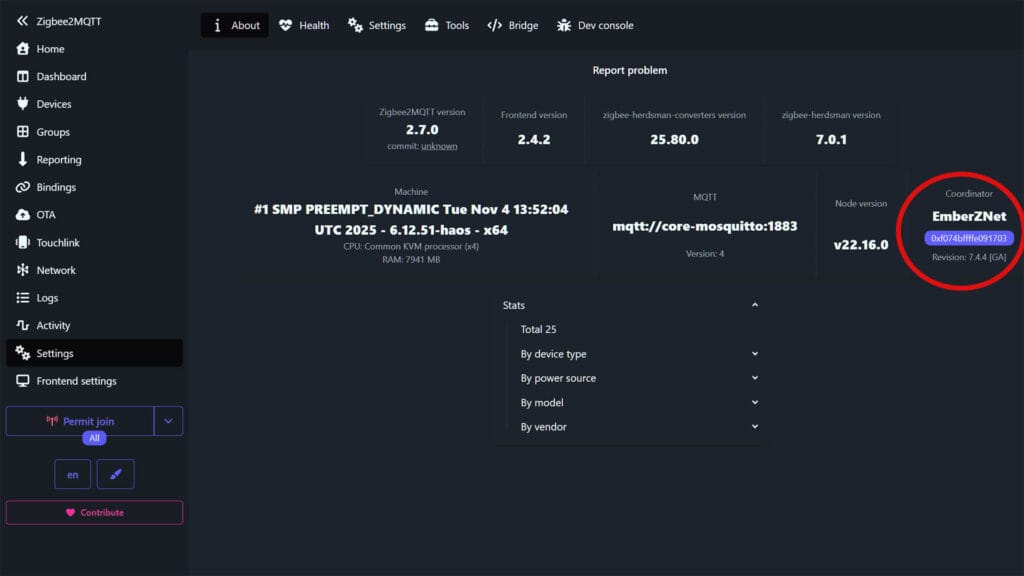
Open Zigbee2MQTT and navigate to Settings > About and look under the Coordinator section and save the value, e.g. 0xf074bffffe091703. Alternatively, navigate to zigbee2mqtt folder and open the database.db file. The coordinator address is found on the first line, right after "ieeeAddr". Here’s a screenshot from Zigbee2MQTT’s new Windfront UI:
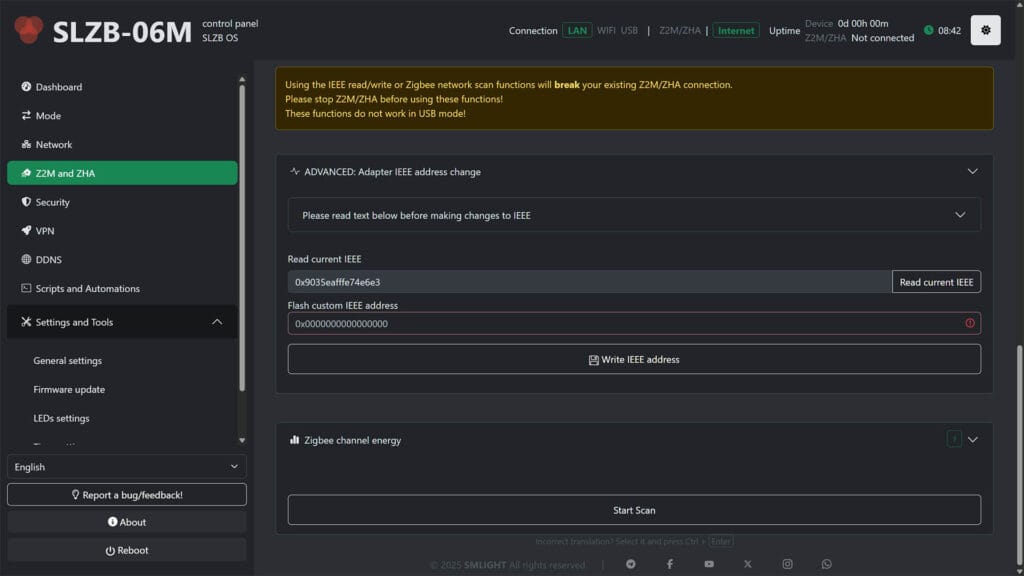
Now, most network coordinators allow you to change the IEEE address directly from the web dashboard. For example, SMLight PoE coordinators have a setting found in the Z2M and ZHA menu, under the Advanced: Adapter IEEE Change Setting. You simply paste the new one and press Write IEEE Address. Make sure the coordinator is not in use while doing this and Zigbee2MQTT/ZHA is completely powered down.
If you have a USB-only coordinator you need to use a firmware flashing tool. Depending on your chip manufacturer (Texas Instruments or Silicon Labs), you have several tools at your disposal for changing the IEEE address. For Silicon Labs chips, I like to use the Universal Silicon Labs Flasher. For Texas Instruments chips, I recommend the ZigStar Multi Tool. Here’s how to change the IEEE with each:
Universal Silicon Labs Flasher
- Install the Universal Silicon Labs Flasher tool
Install through terminal or PowerShell:
$ pip install universal-silabs-flasher- Plug in your new adapter to your PC
Find the correct serial port e.g.:- Linux:
/dev/ttyACM0,/dev/ttyUSB0etc. - macOS:
/dev/tty.usbmodemXXXXor/dev/tty.usbserialXXXX - Windows:
COM3,COM4, etc.
- Linux:
- Run the following command, replacing the IEEE and serial port:
- Replace
/dev/ttyACM0with the path to your new coordinator - Replace
f074bffffe091703with your coordinator’s IEEE address.
IMPORTANT: Remove the(0x)hex prefix and colons(:)from your IEEE.
- Replace
universal-silabs-flasher --device /dev/ttyACM0 write-ieee --ieee f074bffffe091703If the process fails, try adding --force at the end of the command. Monitor the logs for a successful confirmation. If the current device’s IEEE address already matches the new one, the command will not write it unnecessarily. Done!
Zigstar Multitool
- Download and launch ZigStar Multitool
Install the application for your operating system and open it. - Connect your adapter and enter Bootloader (BSL) mode
Refer to your adapter’s manual, since the method varies by model. - Click the refresh icon and select your adapter
The tool should detect the serial device once it is in BSL mode. - Enter the old coordinator’s IEEE address
Fill in the “IEEE” field with your old coordinator’s IEEE.
The leading0xprefix is optional and colons should not be used. - Enable “Write IEEE” and write the address
Check the “Write IEEE” box and click Write IEEE to flash the address. - Reflash the firmware afterward
This step is required. The coordinator will not use the new IEEE address until the correct firmware is written back to the adapter. Use the same tool to re-flash the firmware or refer to the manufacturer’s flashing tool, e.g. Sonoff.
If the ZigStar Multitool does not detect your adapter, double-check that it is properly in BSL mode and that no other software (like Zigbee2MQTT or Home Assistant) is currently using the same serial port. Try unplugging and reconnecting the adapter, then click the refresh icon again. If the IEEE write operation fails, restart the tool and repeat the process, ensuring the correct COM or USB path is selected.
Migrate ZHA to a New Coordinator
ZHA includes a built-in migration wizard that makes moving your existing Zigbee network to a new coordinator very straightforward. The wizard automatically backs up your current network data, transfers the Zigbee network key, preserves device pairings, and, when needed, writes the old coordinator’s IEEE address to the new adapter.
In the process, it also restores essential network metadata so that your devices can rejoin the network without being re-paired. In ZHA, this process works both for same chip migrations and, in most cases, across different chip manufacturers, as long as the new adapter is fully supported by ZHA. Keep in mind that when migrating ZHA from between different chips, there is no absolute guarantees and you might need to re-pair some devices.
Follow this process to migrate ZHA to a new coordinator:
- Check prerequisites and make a backup
Create a full Home Assistant backup before migrating.
Ensure the old adapter is currently used only by ZHA. - Connect the new coordinator to your HA server
Plug in the new Zigbee adapter using a USB extension cable to reduce interference. If you are using a network coordinator, set a static IP address in your router. - Go to Settings > Devices & Services, open ZHA and click Configure (Cogwheel)
- Under Network settings, select Migrate adapter.
ZHA automatically creates a backup of your Zigbee network. - Select Migrate to a new adapter
- Select the new Zigbee adapter from the list of serial ports
For network adapters, select Enter Manually and input the correct TCP address and port - Select Migrate Automatically to restore your backup
ZHA will restore the backup and write the old coordinator’s IEEE address to the new adapter when supported.
In the rare event the new coordinator requires overwriting the IEEE address, you will see a prompt to Overwrite Radio IEEE Address. Input the new IEEE address, check the Permanently replace the radio IEEE address box and click Submit. - Wait for devices to rejoin
Devices will automatically rejoin the network over time, which can take up to one hour. - Remove the old coordinator
- Done.
Once the network comes back online, you need to give it some time to boot back up and settle. Devices will automatically rejoin after a while. You can force this process by power-cycling your mains-powered Zigbee routers.
Conclusion
Migrating a Zigbee network may seem overwhelming at first, but with the right preparation and a clear understanding of your coordinator’s chip family and capabilities, the process is far more manageable than most people expect. Whether you use Zigbee2MQTT or ZHA, both platforms provide reliable mechanisms for moving your existing network to a new adapter without having to walk around your home re-pairing every device.
For Zigbee2MQTT, successful migration depends entirely on using adapters based on supported chip families such as Texas Instruments zstack or Silicon Labs ember. When these conditions are met, copying the IEEE address and restoring the network backup is enough to seamlessly continue operating the same Zigbee mesh on new hardware. ZHA offers even more flexibility, providing a built-in migration wizard that handles backup, restore, IEEE transfers and network reconstruction automatically, even when switching between different chip manufacturers, as long as both adapters are fully supported.
That said, no migration method is guaranteed to be perfect. Zigbee networks vary widely in size, device types, routing patterns and firmware quality. Even with correct procedures, you may still need to re-pair a handful of devices, especially battery-powered sensors, older devices, or anything that was already unstable before the migration. It is also possible for certain devices to temporarily disappear, fail to rejoin cleanly, or require a manual reset.








It seems that deconz chips can be replaced by efr chips.
Hi, great article that makes me think again of replacing my coordinator. But is there any crucial reason to change from ZigStar UZG-01 to SMLight SLZB-06M. i bought the second one and did not notice then, that to replace it might have a risk of repairing almost 120 devises that i have to my network.
No, there is not. The UZG-01 is an excellent coordinator and can handle large networks with ease.
Hey, everybody!
I’m working on a new web-based multi-tool that supports the latest TI chips as well as SL and others. After reading this article, I implemented the ability to read and write IEEE addresses for TI and SL chips.
I invite everyone to test it.
Website (where you can use it): https://mt.xyzroe.cc
The repository is available at: https://github.com/xyzroe/XZG-MT
Wow, that’s great work! Thanks for sharing, I’ll test it out!
Hi, how do I write the old IEEE address to the ZBT-2 ?
Same question, can Home Assistant Connect ZBT-2 have it’s IEEE address changed?
Yes, I changed it on mine. Use the Universal Silicon Labs Flasher method from the guide.
Worked flawlessly, moved from a UZG-01 to a SLNZ-MR3 without any problems
Great to hear, cheers!
Hi,
Unable to set or read the IEEE from a ZBT-2.
Anyone got this working?
Make sure it’s not in use by the integration. Unplug and reboot HA and try again
I tried the method described here for migrating my Zigbee2MQTT network from an EFR32MG26 (Ember) coordinator to a CC2674P10 (Z-Stack) on an MR4U setup. I did everything the guide suggests: backed up the coordinator, copied the IEEE address to the new adapter, ensured the same pan_id & extended_pan_id, and restored the network.
The migration appears to complete, the new coordinator starts, and devices show up in Zigbee2MQTT. However, the devices do not respond, do not send states, and remain unresponsive, even after waiting and waking up sensors. I tried permit_join and rebooting, but no success.
My conclusion is that while backup/restore and IEEE transfer works technically, many devices do not actually rejoin or function properly after an Ember → Z-Stack migration, at least in my setup. I suspect differences in stack behavior (Ember vs Z-Stack) prevent proper rejoin or security association for many devices.
Has anyone managed a successful migration specifically from EFR32MG26 → CC2674P10 without having to re-pair devices? If so, what coordinator firmware version and tools did you use?
I’m sorry to hear the migration didn’t go smoothly.
The issue you’re facing is a known limitation when switching between fundamentally different hardware architectures (e.g.
ember>zstackorzstack>ember).While Zigbee2MQTT’s backup tool can technically clone the network parameters (IEEE address, PAN ID, and Keys), they cannot always translate the internal Network Layer (NWK) security counters or neighbor tables between these two different stack implementations. Especially for end devices (mains-powered routers can usually rejoin after a power cycle.
As noted in the Zigbee2MQTT documentation and in my guide, seamless migration is generally only guaranteed when staying within the same chip family.
Thanks for this great guide. I just successfully migrated from a TI CC1352-P coordinator to a SMlight SLZB-MR3U using the TI radio for Z2M.
One note that I wanted to share was that my config yaml didnt define my ext_pan_id.
With a bit of digging I can see in the coordinator backup JSON that it was set to “extended_pan_id”: “dddddddddddddddd”. This is apparantly the default, and in the config yaml should be represented as:
ext_pan_id: [0xDD, 0xDD, 0xDD, 0xDD, 0xDD, 0xDD, 0xDD, 0xDD]