

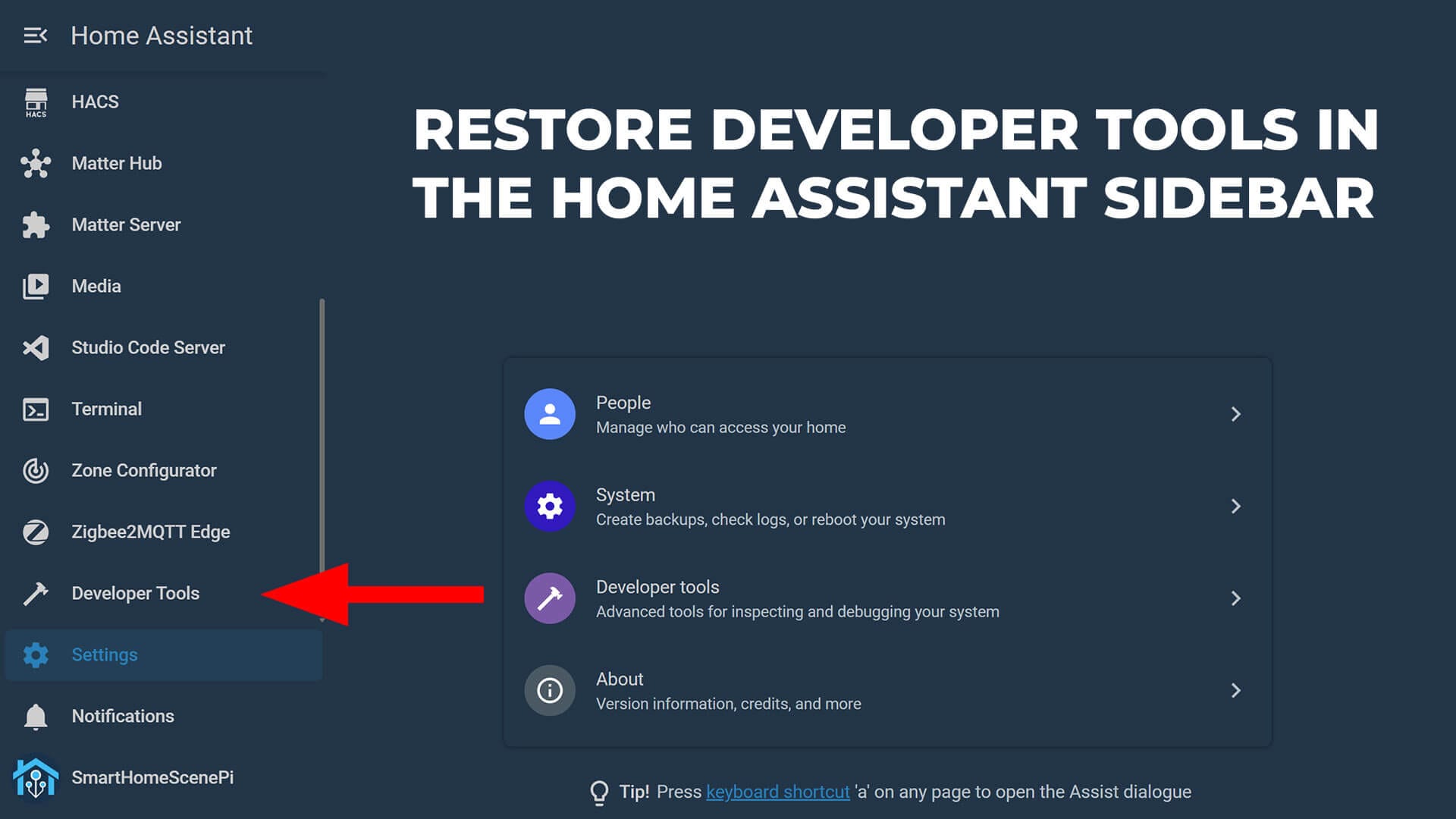
Home Assistant 2026.2 removed Developer Tools from the sidebar and moved it under Settings. It is still there, but reaching it now requires an extra click and a scroll to the bottom of the Settings page. This guide covers how to get it back and restore the sidebar shortcut permanently. Jump to code
What Is Developer Tools and Why Was it Removed?
If you are here, you probably already know what the Developer Tools menu does in Home Assistant. It gives you direct access to the internals of your Home Assistant instance. It has 7 tabs:
- States: view and manually override the state of any entity in real time. Useful for testing whether a sensor is reporting correctly without waiting for it to update.
- Actions: fire any Home Assistant action directly, without an automation or script. Essential for testing actions before wiring them into logic.
- Templates: a live Jinja2 editor that updates output as you type. Indispensable for writing template sensors and conditional automations.
- Events: subscribe to and fire Home Assistant events on demand. Useful for debugging custom integrations and MQTT flows.
- Statistics: inspect long-term statistics data for your entities, and fix inconsistencies or unit mismatches that cause gaps in your Energy dashboard or history graphs.
- Assist: test your voice assistant pipelines directly. Send a text command and see exactly how the pipeline interprets and handles it.
- YAML: validate your configuration before restarting, so syntax errors surface before they take your instance down.
These tabs are useful at every level. Checking entity states, looking up attributes, validating configuration before a restart, testing a template expression. These are tasks that come up constantly regardless of experience.
No official reason was given for removing Developer Tools from the sidebar, but the likely intent was to make Home Assistant feel less overwhelming to newcomers. A cleaner sidebar with fewer unfamiliar options is a reasonable goal. The problem is that Developer Tools is not something you eventually grow into. Most users need it fairly early on, and hiding it under Settings just makes it harder to find.
How to Access Developer Tools
The menu can still be accessed if you go to Settings, scroll to the bottom of the page, and tap Developer Tools. No configuration changes required.
On a desktop, the faster route is Quick Search. Press Ctrl+K (or Cmd+K on Mac), start typing “developer”, and select Developer Tools from the results. On a touchscreen install this is not practical, which is where the next option comes in.
How to Add Developer Tools Back to the Sidebar
This restores the original single-click access using the built-in panel_custom integration.
- Open configuration.yaml.
Open your Home Assistant configuration.yaml file with a file editor. - Add the panel_custom block.
Paste the following into yourconfiguration.yaml:
panel_custom:
  - name: panel_develop
    sidebar_title: Developer Tools
    sidebar_icon: mdi:hammer
    url_path: "config/developer-tools/yaml"
    module_url: /api/hassio/app/entrypoint.js
    embed_iframe: true
    require_admin: true
If you already have a panel_custom: block in your configuration, do not create a second one. Add the entry starting with - name: panel_develop under the existing block instead.
- Restart Home Assistant.
Go to Settings > System > Restart and perform a full restart. A soft reload will not pick upconfiguration.yamlchanges. Developer Tools will appear in the sidebar after the restart, sorted alphabetically near the top of the list. - Reposition it (optional).
To move it back to the bottom of the sidebar, long-press the Home Assistant logo at the top of the sidebar to open Edit sidebar. Drag Developer Tools to the bottom and save. - Done
Changing the Default Tab
The config above opens Developer Tools to the YAML tab. To land on the States tab instead, change the url_path to:
url_path: 'config/developer-tools/state'Will Home Assistant Add This Back Natively?
The HA team indicated during the 2026.2 release party that built-in sidebar customization is in development. When it arrives, you will be able to pin and unpin sidebar items without touching configuration files. Until then, the panel_custom method above is the cleanest available fix.







Thanks!