

In past reviews, I’ve tested a lot of Zigbee smart buttons. From the widely known Loratap 4-Button remote to the rather simply Moes Zigbee Smart Button. The Zigbee Fingerbot is also particularly useful for automations and bringing smartness to dumb appliances, and almost everyone has a use case for it.
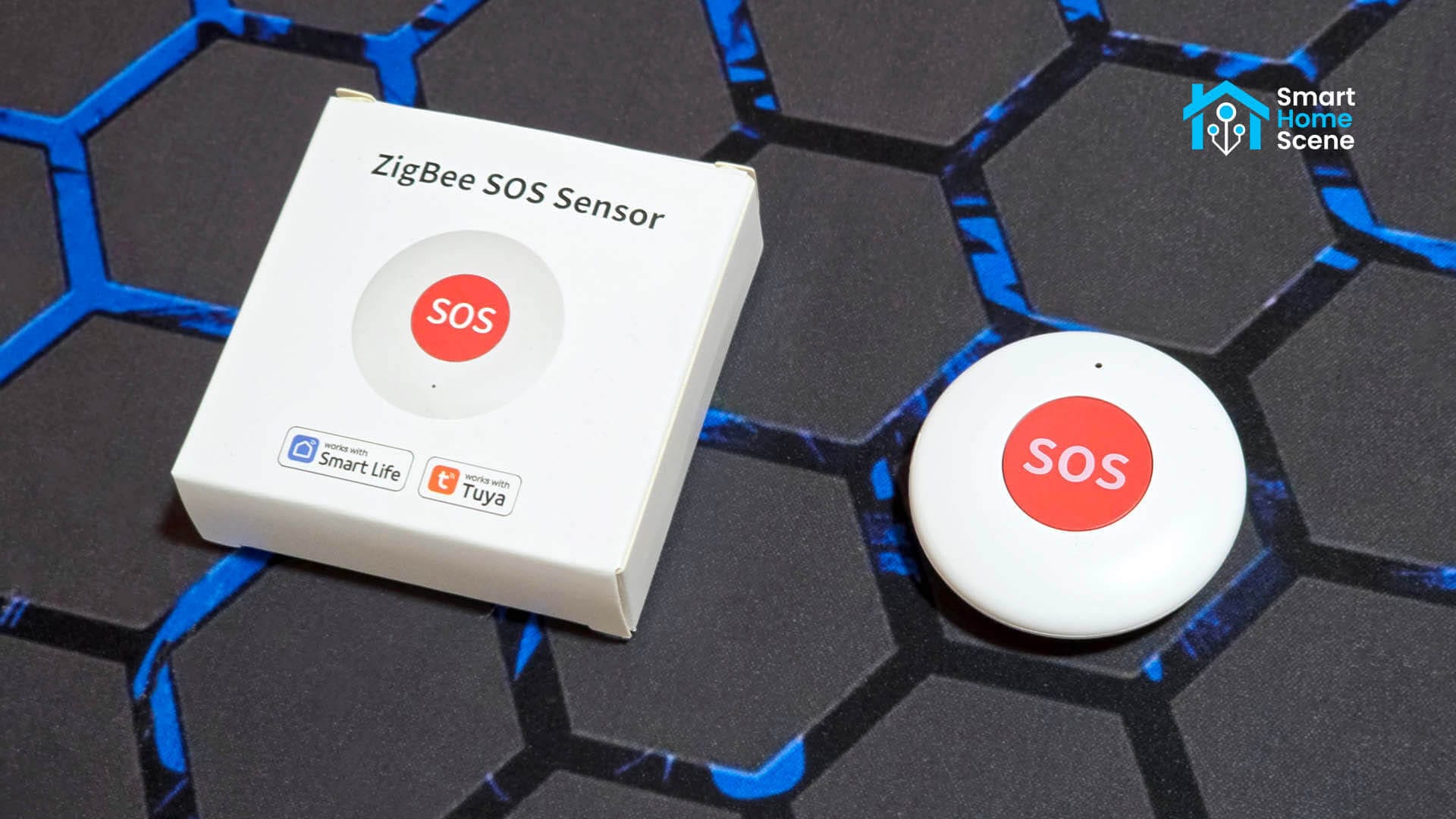
In this article, I’m sharing a simple but very useful smart button I came across on AliExpress. This is a Tuya Zigbee SOS Smart Button with a single purpose: execute emergency automations. It’s small, clearly labelled and easy to use by anyone, including kids or elderly people.
You can get it on AliExpress, AliExpress 2 or Amazon (square).
Package Contents and Teardown
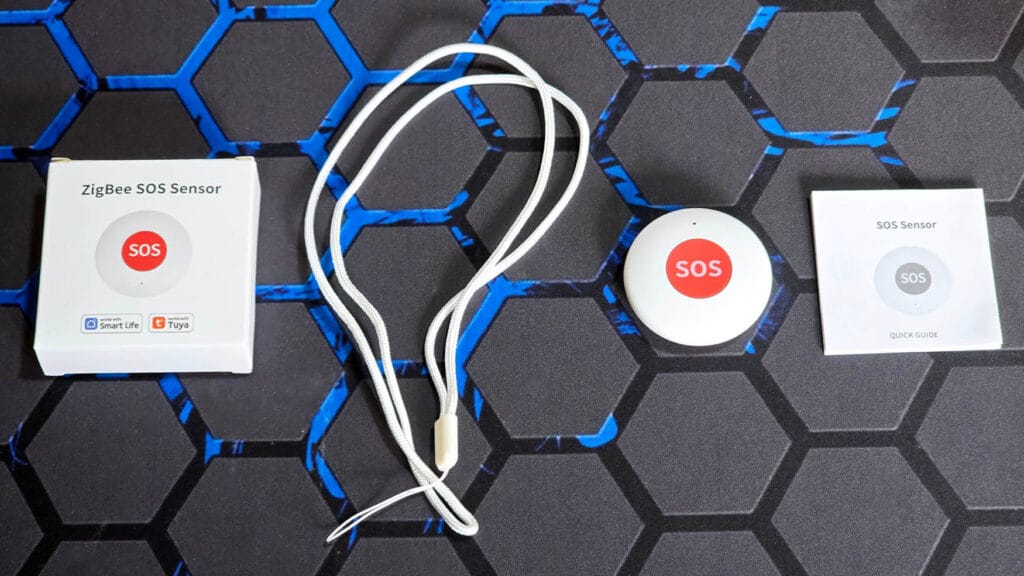
This Tuya SOS Smart Button ships in a small box containing the device itself, a user manual and a string for attaching the device in a convenient place. The box is mislabeled as a “Zigbee SOS Sensor”, but there isn’t anything sensor-like about this smart button.
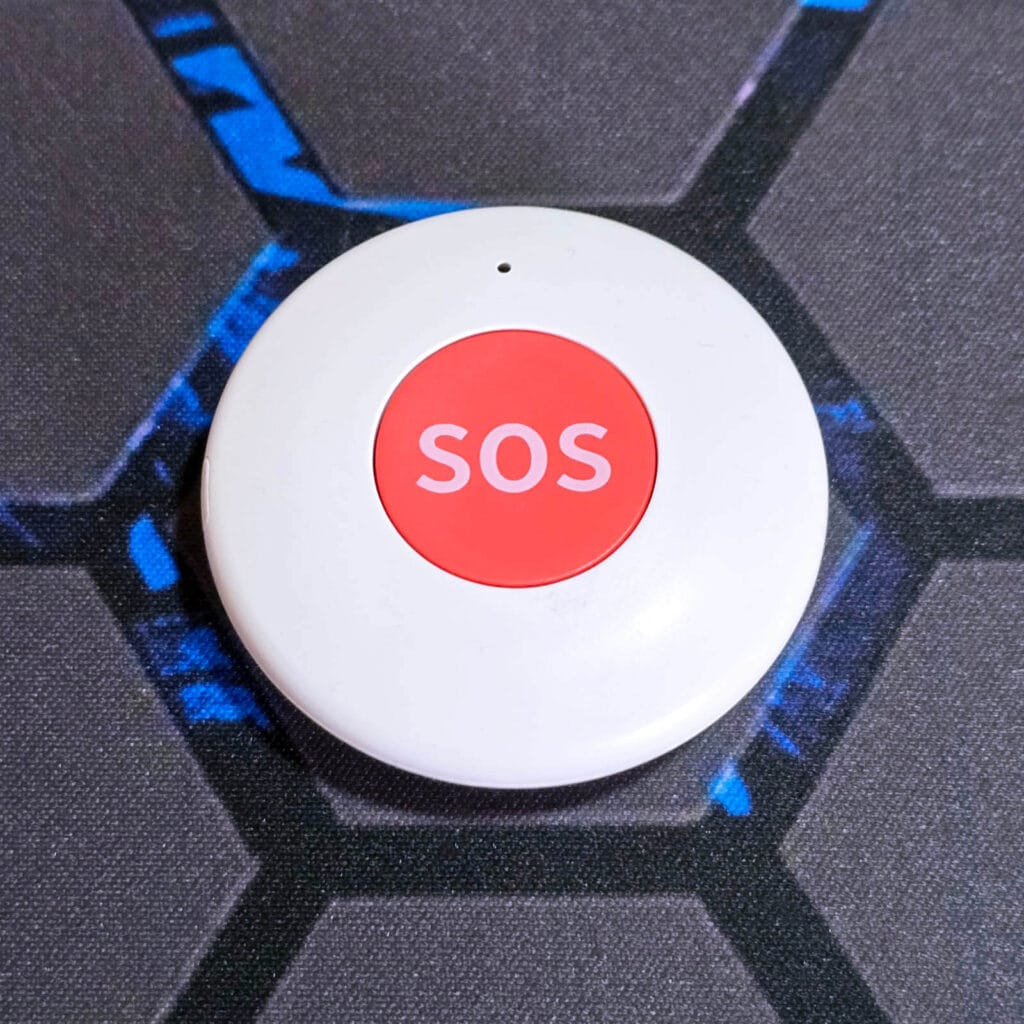
The device is rather simple. There is a clear red pressing area in the middle labeled with “SOS“. A small hole above it shines an onboard LED which acts as a visual indicator of whether your button press worked or not. That is literally it. On the backside, my sample is labeled as model RSH-SOS05, but I am sure multiple white-label versions exist of this same smart button.
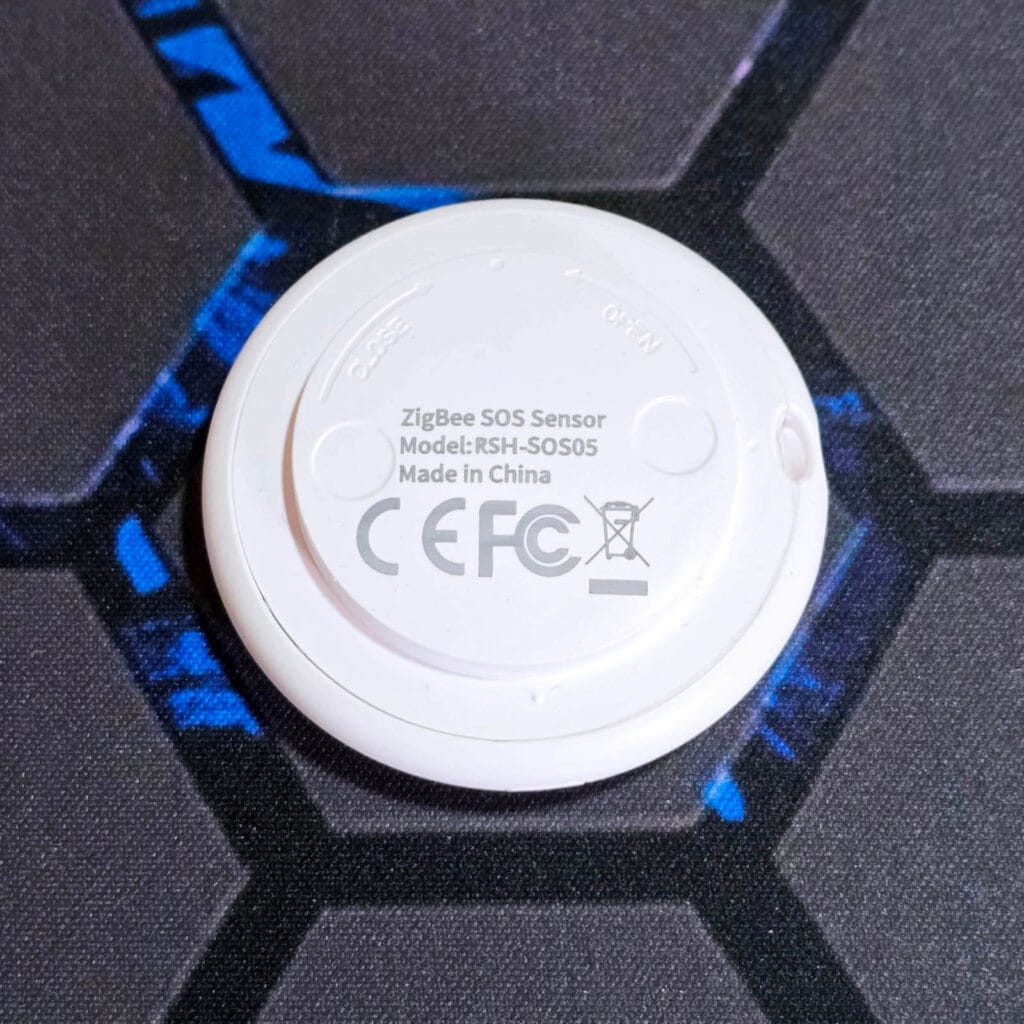
This button is powered by a single CR2032 coin cell battery. There isn’t a claimed battery life anywhere, but as this is a fairly simple device with no additional functionality, I’d wager this small battery can keep it going more than a year.
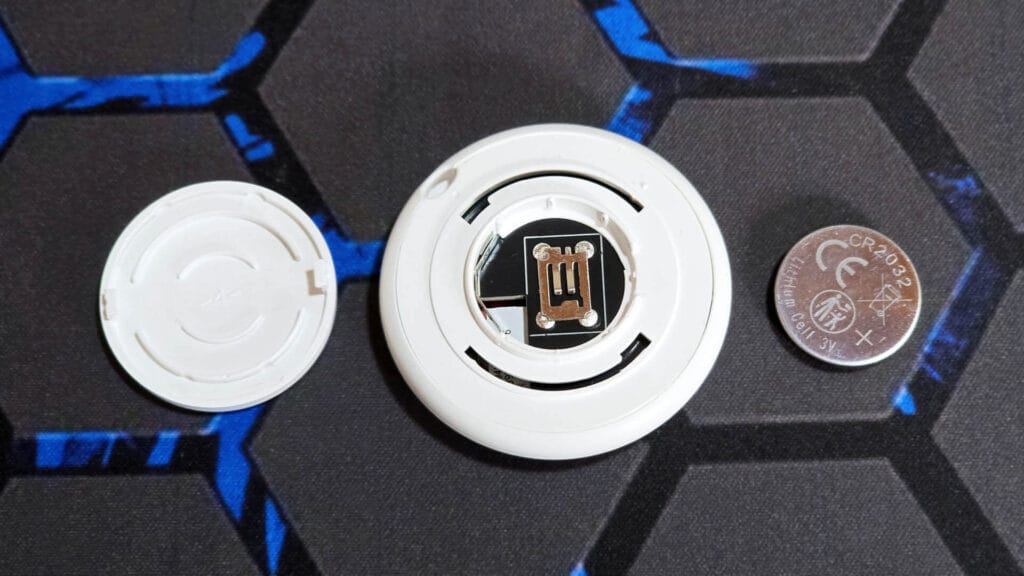
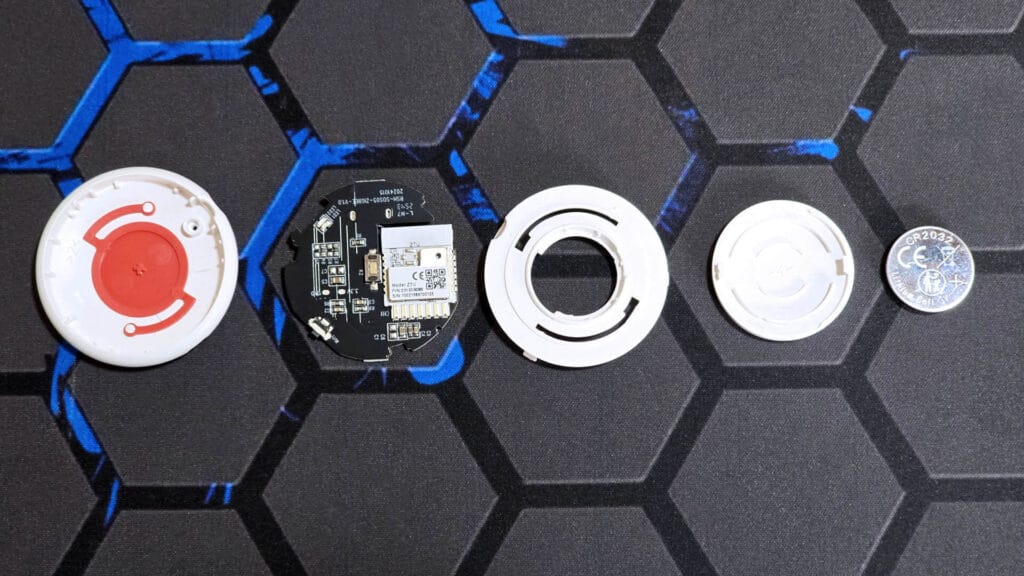
I opened the device with a small screwdriver to take a peek at the internals. As I expected, this button is powered by the Tuya ZTU Module [Datasheet] which is the gold-standard for battery-powered Tuya devices. The PCB is clean, professionally made and quite simple. There isn’t anything more to say about this button, except tell you how it works.
Home Assistant Integration
This simple Zigbee button works with Zigbee2MQTT and ZHA out of the box. As there is only a single action you can perform, it doesn’t require a complex converter or quirk. To pair it, you simply hold the button until the indicator LED starts blinking.
Zigbee2MQTT
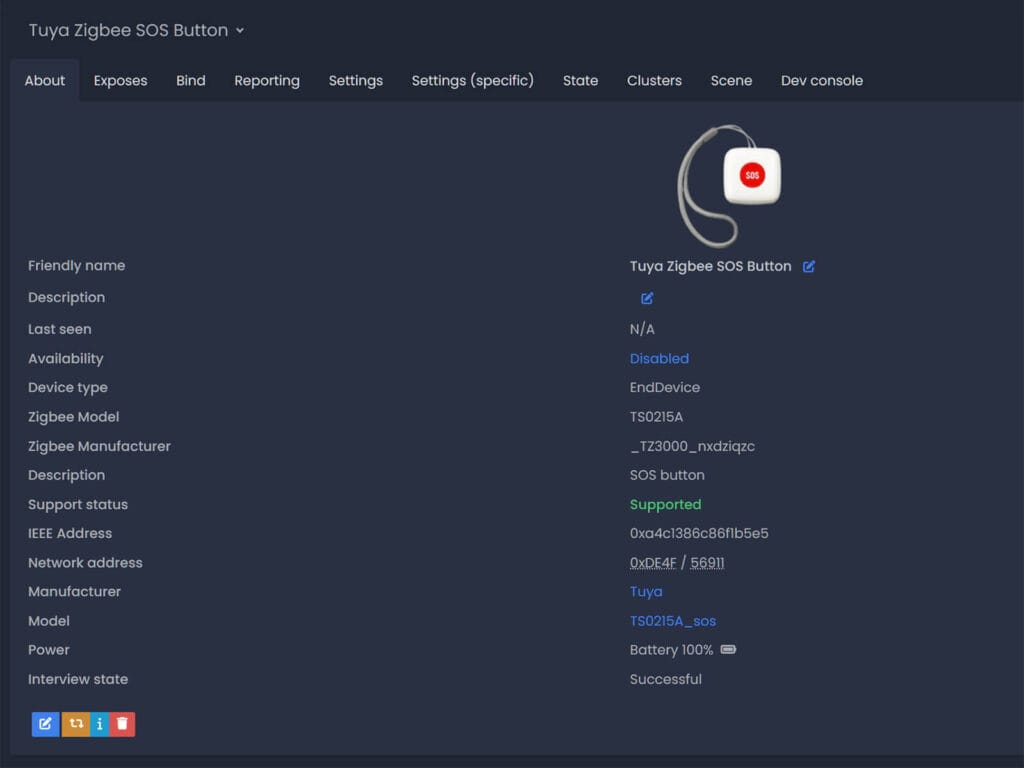
Once paired, the device is identified as Zigbee Model TS0215A with Zigbee Manufacturer _TZ3000_nxdziqzc. It finished the interview immediately and reported the battery level after a couple of clicks. Obviously, it’s an end device and not a router.
Here’s what it exposes in Zigbee2MQTT:
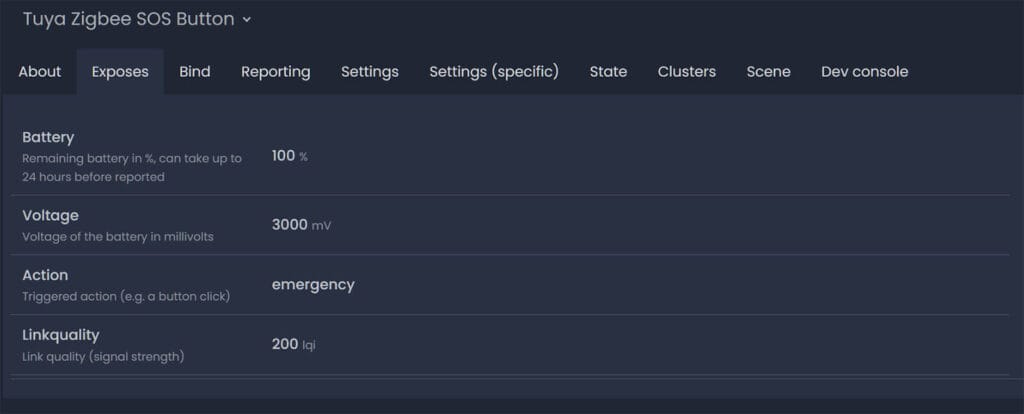
The action entity is the one and only usable entity, and actually, the only one you need for automations. There isn’t a double click, triple click, or hold action. This button simply executes repeated single presses very fast, just like any other SOS button. However, it’s worth noting that direct binding is not supported.
ZHA
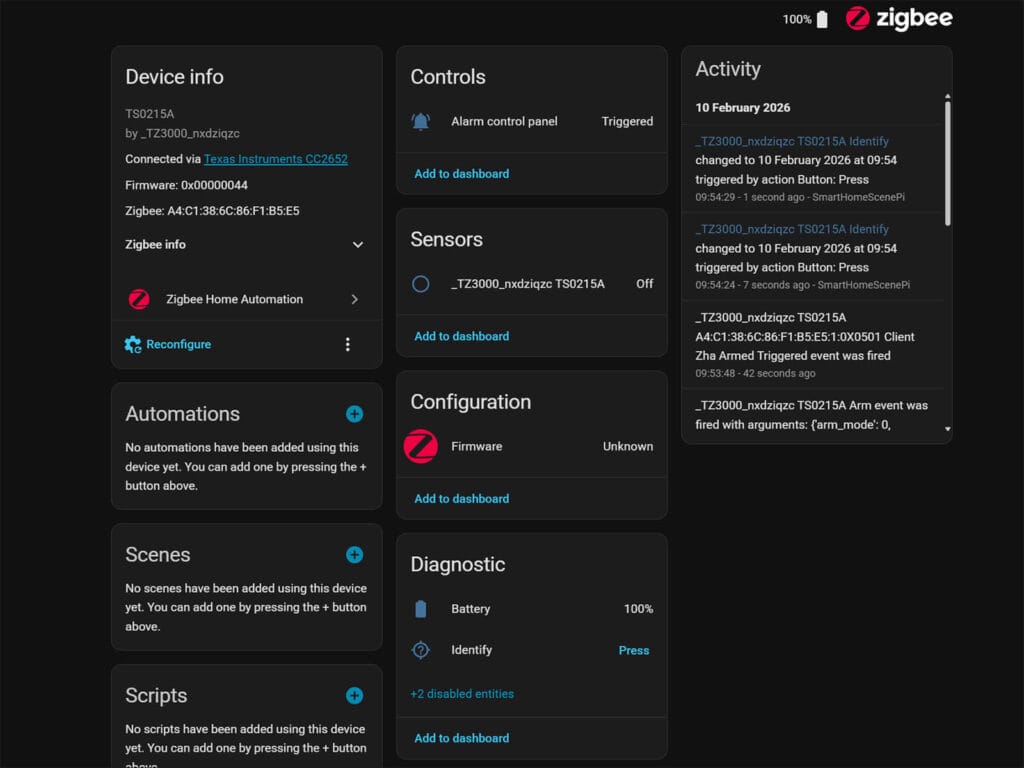
Similarly, the button gets successfully recognized in ZHA where you also get a single button press sensor for executing automations. As ZHA handles things differently, the button entity is actually from the alarm_control_panel domain. This is irrelevant, as you can create triggers in a similar way to Z2M.
Creating Automations
Now, the sole and single purpose of this button is to create a state of emergency in your home. Whenever it is pressed, an action is immediately executed. Lights can be flashed or an alarm siren could go off, which is obviously highly dependent on your needs.
As far as the trigger goes, here’s how to create it properly:
alias: Tuya Zigbee SOS Button Automation
description: "Execute action on single press"
triggers:
  - domain: mqtt
    device_id: 4fea6c61198e6d8c2077594654fefec7
    type: action
    subtype: emergency
    trigger: device
conditions: ...
actions: ...
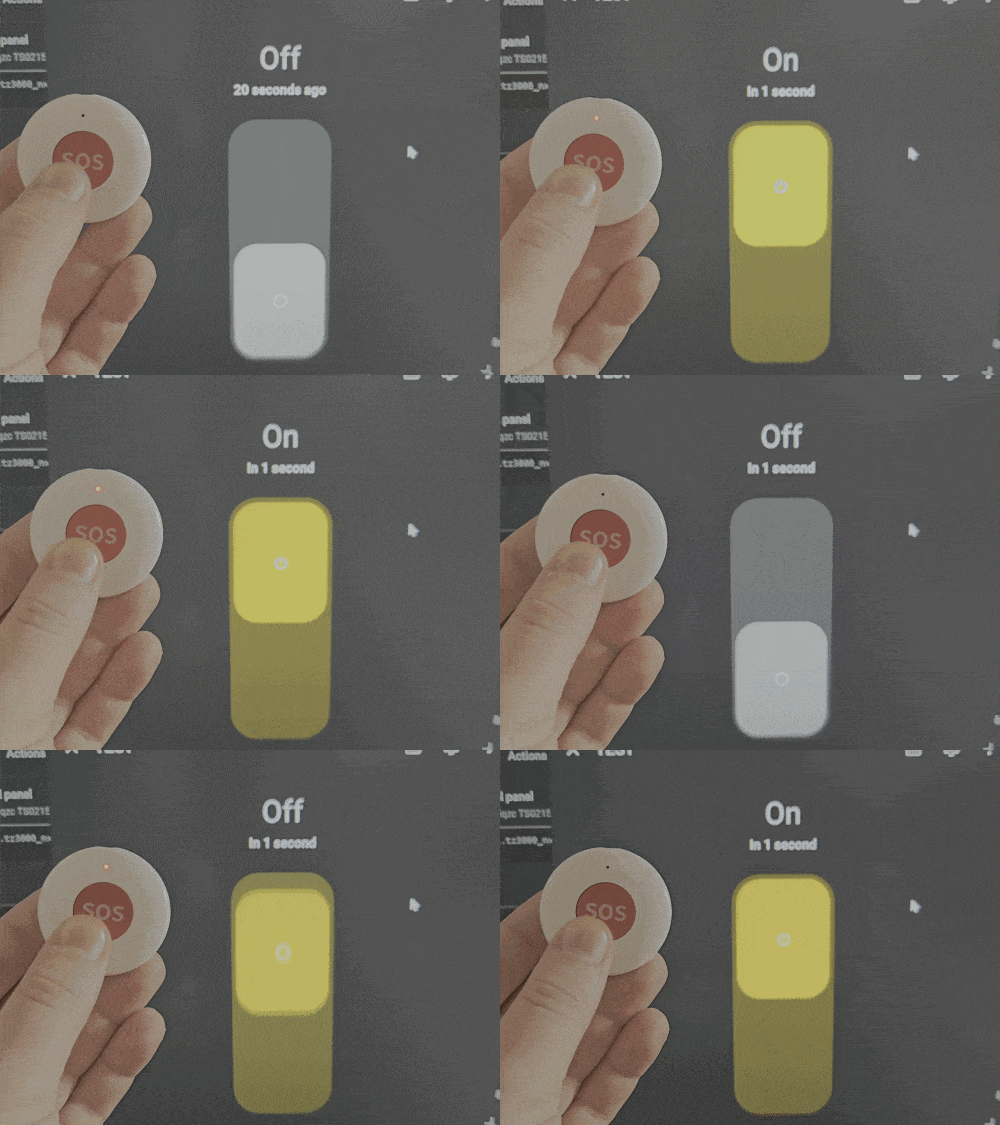
To illustrate how fast the button triggers in a solidified Zigbee network, I recorded and made a short GIF.
It simply toggles a dummy light switch on and off without any conditions:
Final Thoughts
There isn’t much more to say about this Tuya Zigbee SOS Smart Button. It simply does what it says it does without any issues or fancy additions. For instance, I am glad no one decided to add an illuminance sensor or something to a single-purpose smart button like this one.
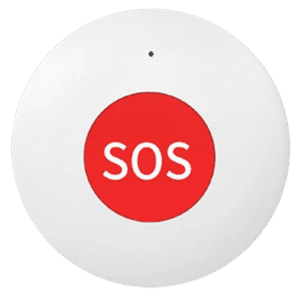
If you have a use case for it (and I am sure you do), this button is dirt cheap, highly useful, and simple to integrate into Home Assistant. You can also find it as a square instead of a circle on various online stores:
Also on AliExpress 2, Amazon DE, Amazon UK, Amazon NL, Amazon CA, Amazon FR.






Often wondered about these buttons and their suitability as a doorbell button when paired with a ZigBee chime, in that instance a direct bind would be useful. Obviously one marked with a bell would be better, nothing a sticker couldn’t fix though.
Sure, but there are better multi-click alternatives for that. This is designed for emergencies, single-press only.
For a device that is supposed to work in case of an emergency, the choice of a CR2032 battery is odd, to say the least! Something holding more juice (at least a CR2477, if not a pair of AAA) would have greatly reduce the chances of a dead battery. Imagine your grandma dying of a heart attack because the tiny battery decided that it is time for a change!
Ridiculous take. A single CR2032 can drive an always-sleeping, single-purpose device like this for at least two years, if not more.