

Home Assistant can now pair Matter devices on its own, without a phone anywhere in the process. Until recently, that first Bluetooth handshake always needed a phone or tablet to complete, no matter how the rest of your setup was configured.
This guide covers what changed with Matter in Home Assistant and what you need to pair devices without a phone. It walks through the full process, from configuring the Matter Server app to commissioning your first device without touching a phone.
Why Matter Commissioning Needs Your Phone
Almost every Matter device uses Bluetooth for its onboarding process. Before it can join your Wi-Fi network or your Thread mesh, a controller has to scan its QR code, open a secure BLE connection, and hand over your network credentials to the device.
Until now, your phone or tablet was the only thing allowed to do that job. Home Assistant had no way of running this commissioning handshake by itself, no matter what hardware your server had. It always relied on your phone’s OS, Android or iOS, to handle the credentials. That limitation gets even worse if your device uses Thread instead of Wi-Fi.
The problem appears on Android first, since it does not store Thread credentials inside the Home Assistant Companion app.
It stores them inside Google Play Services, tied to your Google account. For example, if you have ever paired a Thread device with your phone to something like a Google Nest Hub, that network’s Thread credentials are permanently tied to your phone.
This is why, when you open the Companion app and tap Sync Thread Credentials to send your OTBR network info, you get a dialog box saying Home Assistant and this device prefer different Thread networks. And the sync simply refuses to complete.
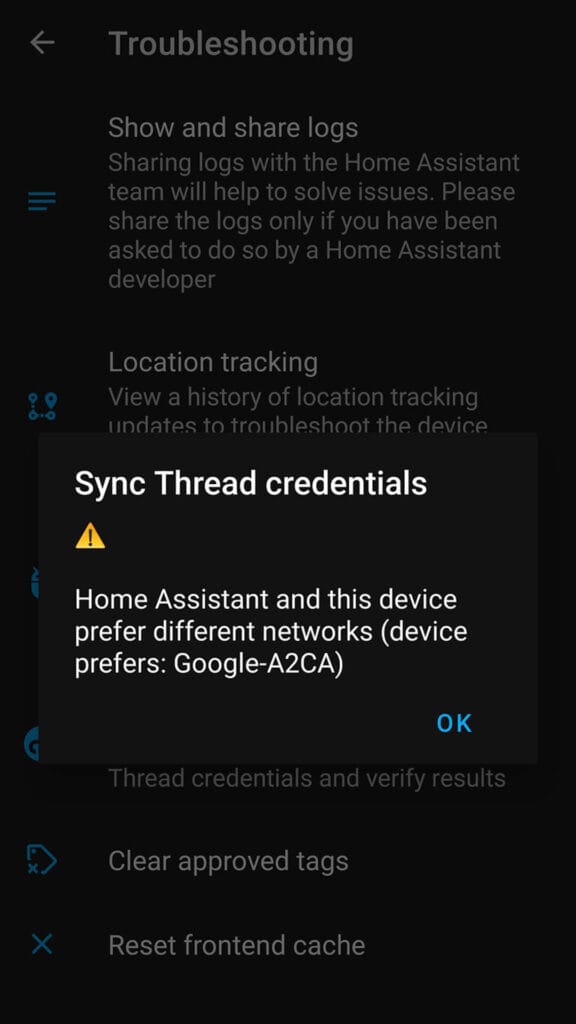
The only fix known to work was clearing Google Play Services data and cache from your phone settings. However, clearing that data wipes saved payment info, transit cards, and any virtual payment cards stored in Google Pay. You have to reauthenticate your payment methods and sign back into your Google account on devices tied to it. All of that just to add one smart plug over Matter.
How Matter Commissioning Without a Phone Works in HA
Home Assistant, being built by absolute legends, introduced a change in 2026.6 that lets the Matter Server app use BLE commissioning through Home Assistant’s own Bluetooth stack instead of a phone. This change is tied to the new matterjs-server release, a JavaScript-based rewrite of the Matter Server app that ships through the beta channel starting with version 9.0.0.
When you enable the ble_proxy option on the Matter Server add-on, matterjs-server exposes a /ble WebSocket endpoint. A client process connects to that endpoint and bridges commissioning traffic from wherever your actual Bluetooth hardware lives. In a Home Assistant setup, that client is the Matter integration itself, and it routes through any Bluetooth adapter or proxy already registered in your Bluetooth integration, including built-in adapters, ESPHome boards, and even some Shelly relays.
Put simply, this allows you to onboard Matter devices to Home Assistant without touching your phone. You can use your PC, Mac or whatever else you use to access Home Assistant. It works great, and this is how to do it.
What You Need for Adding Matter Devices Without Phone
Wi-Fi Matter devices are the simpler case, since they never touch Thread or a border router. Here is the full list:
- Home Assistant 2026.6 and up
- Matter Server app 9.0.0 and up on its beta channel
- Bluetooth Stack for Commissioning: Bluetooth adapter, ESP32 Bluetooth Proxy or any other Bluetooth Proxy with active scanning mode
- Matter Setup Code for the device, either the QR code or the eleven digit numeric code printed on the device or its box
Obviously, Thread devices do not get handed a Wi-Fi password during commissioning. They get operational dataset for the mesh they should join, and from that point on it talks to your network through the border router rather than directly. For commissioning Matter-over-Thread devices, you also need:
- Thread Border Router already running, preferable OpenThread Border Router (OTBR)
- Thread Dataset (TLV) that Home Assistant recognizes as the preferred network, whether generated locally by OTBR or imported from an existing Apple or Google Thread network
That is the entire list. Once the device receives your network credentials during commissioning, it joins your network directly and never needs Bluetooth again.
Configuring the Bluetooth Adapter or Proxy
If your Home Assistant server has its own Bluetooth adapter, Home Assistant can use it directly for BLE proxy commissioning once ble_proxy is enabled on the add-on. No extra configuration is required beyond having the adapter show up under Settings > Bluetooth.
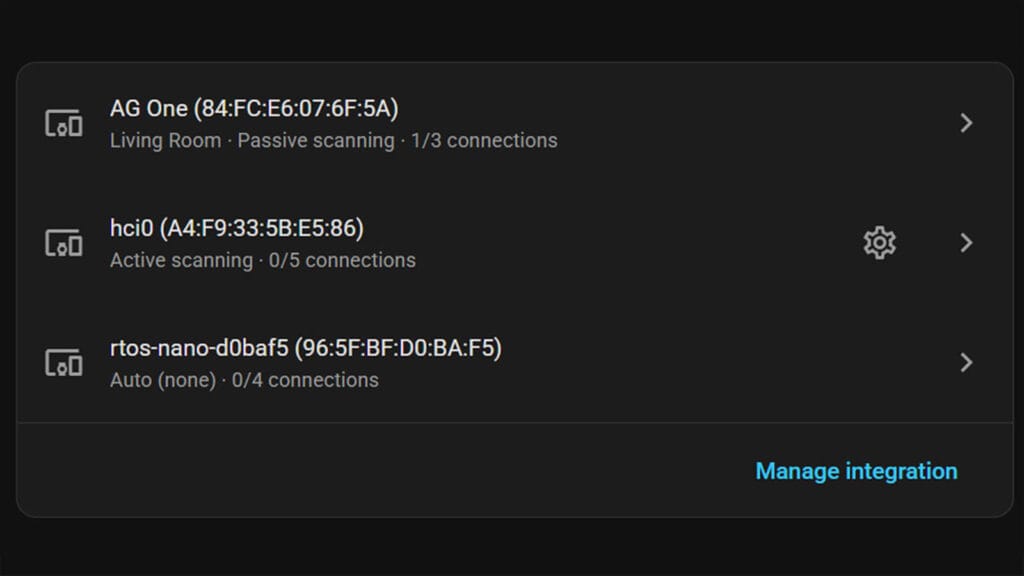
The more flexible option is an ESPHome Bluetooth proxy placed near wherever your new device actually lives. When you flash your ESP32 Bluetooth Proxy, add the following to your ESPHome device configuration.
esp32_ble_tracker:to enable BLE scanning on the boardbluetooth_proxy:withactive: true, as the proxy must be able to form a two-way GATT connection
The active option matters because Matter commissioning is connection based, not just passive advertisement based. A proxy only broadcasting advertisement data cannot complete the secure BLE session commissioning requires.
One detail worth clearing up. Home Assistant 2026.6 also changed the default Bluetooth scanning mode for proxies from Active to Auto, where the proxy listens passively and only switches to active scanning when something prompts it to do so. That setting controls advertisement discovery, and it is separate from the active connection option in bluetooth_proxy. Auto mode also works fine for Matter commissioning.
Configuring the Thread Network and OTBR
If you already run OTBR, confirm it is running properly before you use it for phone-free commissioning. In Home Assistant, navigate to Settings > Thread. You should see OTBR network and border router listed here along with any other Thread networks.
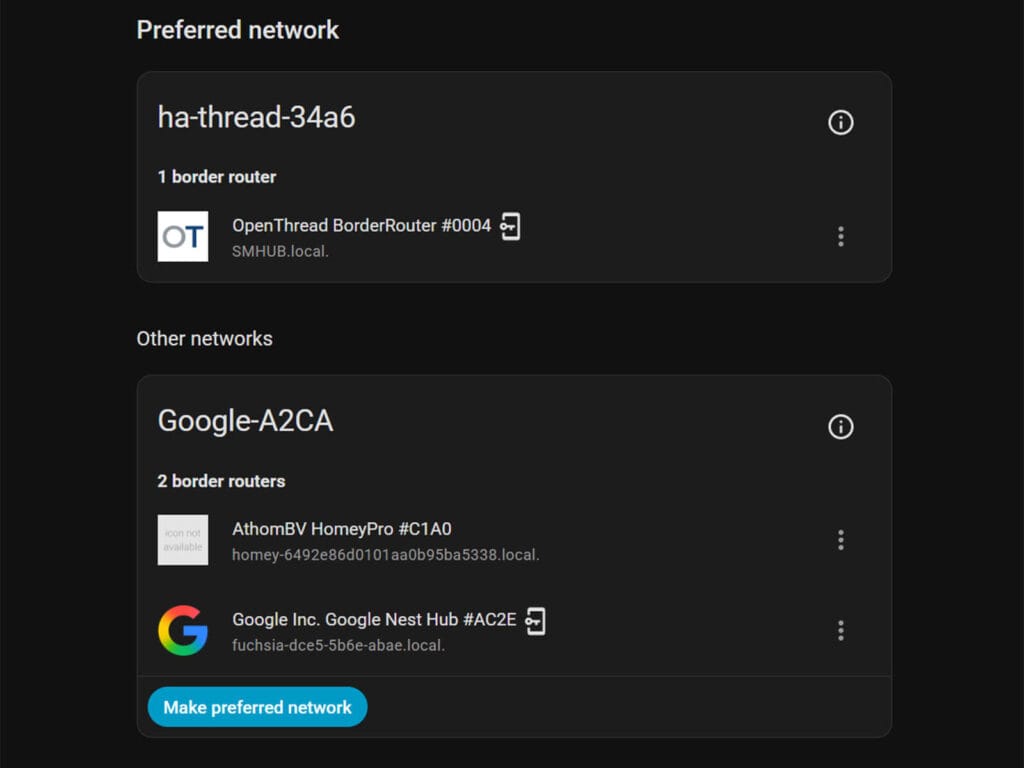
If you have never set up OTBR, install the OTBR app, attach your Thread coordinator, and let it form a new network on first boot. Home Assistant will generate a fresh dataset automatically, and it becomes the preferred network as long as no other Thread border router is already claiming that role on your system. If you happen to have a SMLight coordinator, it can run the OTBR app on the device itself. You can simply point the integration to its IP address.
If you run more than one border router, such as OTBR alongside a HomePod or a Google TV Streamer, Home Assistant will show every network it can see. Pick the one you actually want new devices to join and mark it as preferred before moving on.
Getting Your Thread Dataset Credentials
There are two ways to end up with a usable Thread dataset, depending on whether Home Assistant already runs your Thread mesh network. Navigate to Settings > Thread and look at the list.
If OTBR generated the network itself, you already have what you need. The dataset appears automatically under the Thread integration the moment OTBR forms the network, and no manual step is required. Simply click the small Info icon in the corner and you will find it under Active dataset TLVs.
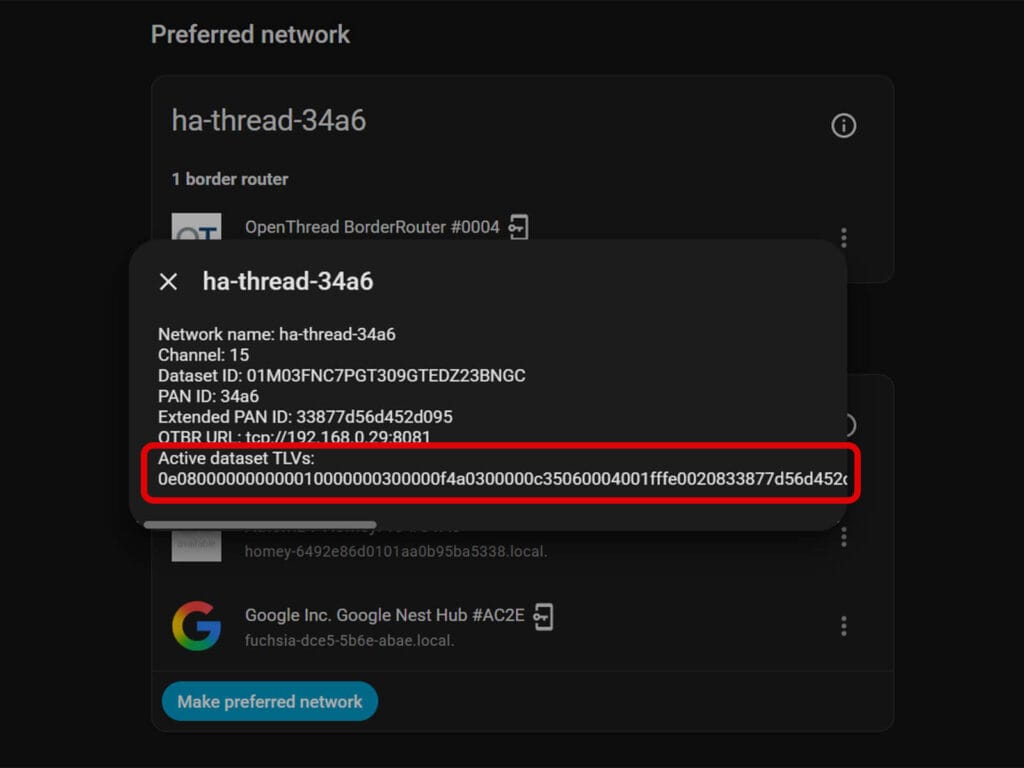
If you already have a Thread mesh run by an Apple or Google border router and you want Home Assistant to join that same mesh instead of starting a separate one, you need to import the existing dataset. On Android, open the Companion app, go to Settings > Thread > Configure and Import Credentials. On iOS, select Send credentials to Home Assistant from the same Thread menu. Once imported, mark that network as preferred.
Copy and save the TLV somewhere, you will need it to configure the Matter Server app.
Configuring the Matter Server App (Add-on)
The Matter server app needs to be updated and set to its beta channel. This allows you to enable the BLE proxy commissioning option and onboard Matter devices directly from Home Assistant. Follow these steps:
- Open Home Assistant
- Navigate to Settings > Apps > Matter Server
- Go to the Configuration tab
- Toggle on Use the latest beta version.
- Toggle on Show unused optional configuration options
- Toggle on Enable BLE proxy
- Click Save
- The app will restart and install the latest version
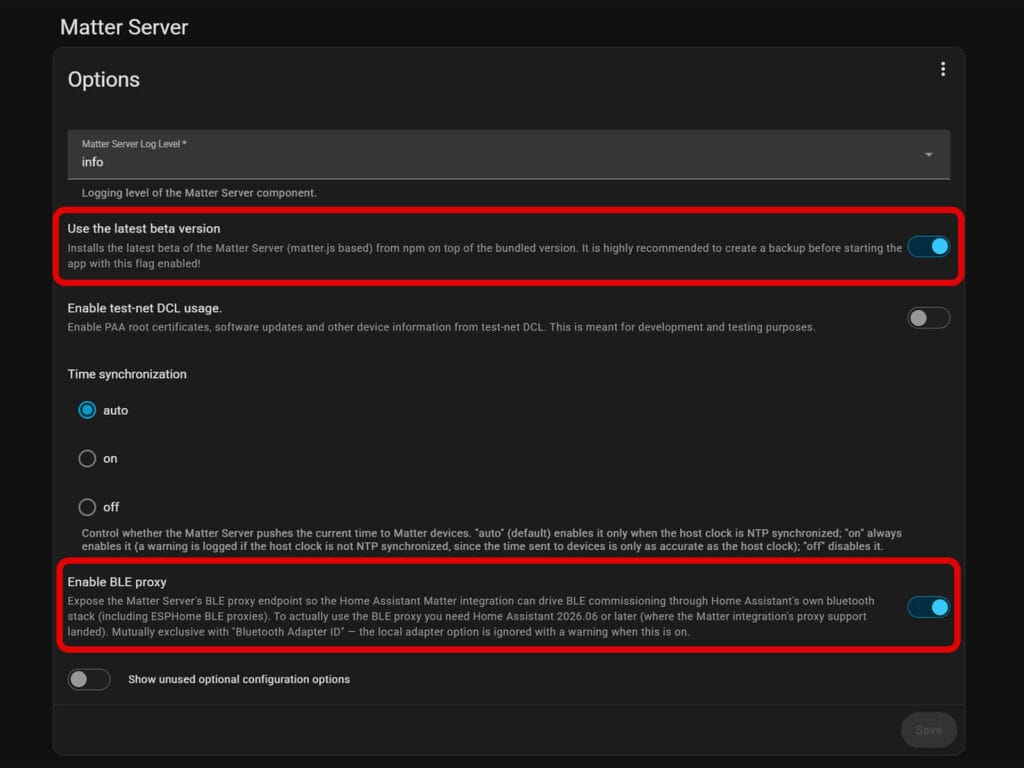
Give the app a minute after restart before configuring anything else. It needs to reconnect to Home Assistant’s Bluetooth stack and register the Bluetooth endpoint before the Matter integration can use it. Once the app is back up, you need to register your Wi-Fi and Thread networks before you can commission any devices.
- Open the Matter Server app by clicking Open Web UI
- Click Settings in the top right corner and scroll down to Wi-Fi
- Click + Add, give the network a name, and input the SSID and password
- Scroll down to Thread
- Click + Add, give the network a name, and paste in your Thread dataset
- Set both as Default
- Click Save
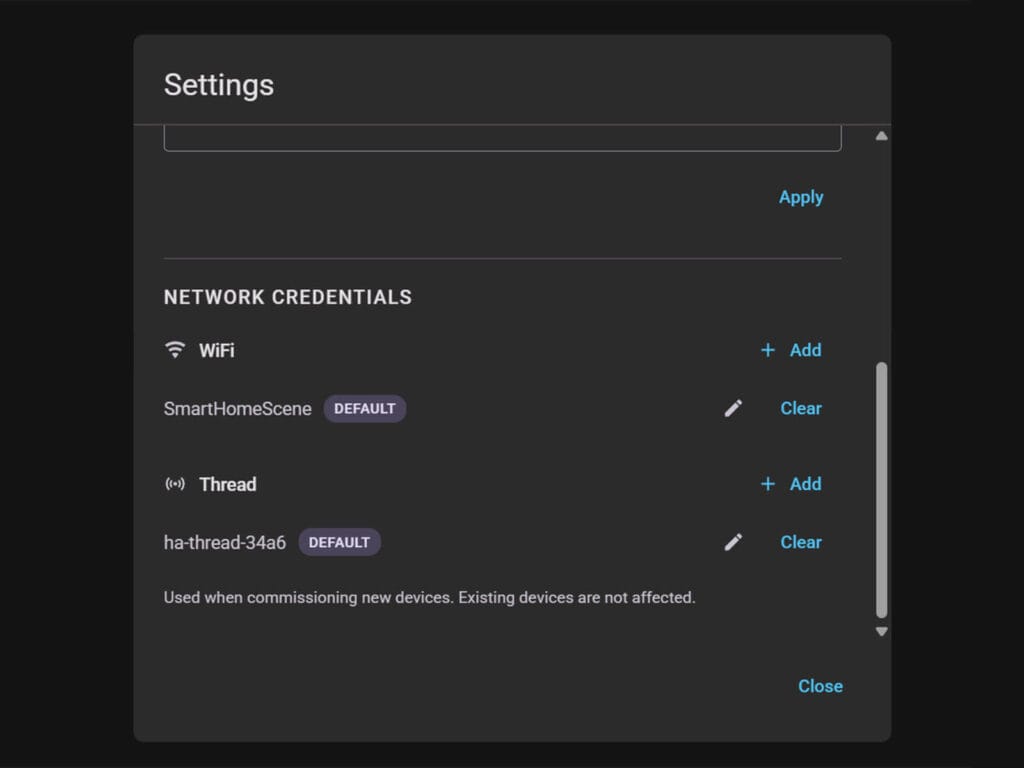
When you have only one of each, they get automatically set as default in the Matter Server app. If not, make sure to set them manually to Default. You are now ready to commission Thread and Wi-Fi Matter devices via Home Assistant directly.
Commissioning a Device via the Matter Server Add-on
With your Wi-Fi and Thread networks registered in the Matter Server app, commissioning Matter devices takes just a couple of clicks.
- Open the Matter Server Web UI and go to Nodes
- Click + Commission node
- Select Commission new Wi-Fi device OR
- Select Commission new Thread device
- Input the Matter pairing code (11 digits)
- Click Commission
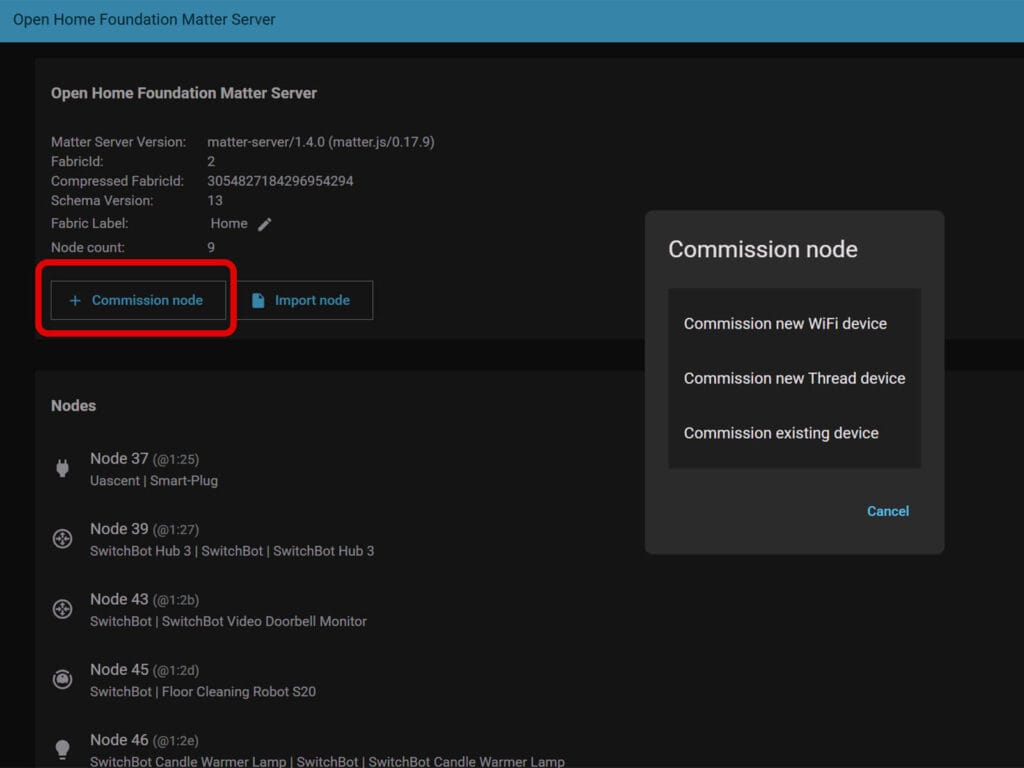
The process is identical for both and, in my case, it takes about 45 seconds for Thread devices and a little less for Wi-Fi. Once the device pairs, it gets added to the node list below.
Summary
Home Assistant no longer needs a phone to commission Matter devices. The Matter Server app’s beta channel can expose a BLE proxy endpoint that routes commissioning traffic through Home Assistant’s own Bluetooth stack. This includes any built-in Bluetooth adapters or ESPHome Bluetooth Proxies you may be running around your home.
Wi-Fi devices need nothing else beyond the Matter Server app and a compatible Bluetooth adapter. Thread devices additionally need a working OTBR setup with an active dataset. Once both are configured, the entire commissioning flow, Wi-Fi or Thread, happens inside Home Assistant from start to finish, and the Google Play Services credential headache that used to come with Thread devices never enters the picture.
Recommended Thread Border Routers
If you do not already have a Thread border router running, the Sonoff Dongle Plus MG24 is the simplest choice if your Home Assistant server is nearby, since it plugs directly into a USB port and needs nothing beyond a short USB extension cable to avoid interference.
If your server sits in a closet or a rack away from where your Thread devices actually live, either the SMLIGHT SLZB-06MG24 or the dual-radio SLZB-MR4U is a great fit. Both connect over Ethernet, PoE, USB, or Wi-Fi, so they can sit anywhere on your network rather than staying tethered to your server. Thread benefits heavily from the extra RAM on these boards, since a dense Matter mesh needs room for large IPv6 routing tables that a simpler USB stick cannot match.
Check out the Best Thread Border Routers for Home Assistant article to learn more.
FAQ
Can I add a Matter device to Home Assistant without a phone?
Yes. Starting with Home Assistant 2026.6 and a Matter Server app running its beta channel, Home Assistant can commission Matter devices directly through its own Bluetooth stack, with no phone or tablet involved.
What do I need to commission Matter devices without a phone?
You need Home Assistant 2026.6 or later, the Matter Server app on its beta channel with BLE proxy enabled, and a Bluetooth path such as a built-in adapter or an ESPHome Bluetooth proxy. Thread devices also need a running Thread border router and an active Thread dataset.
Does phone-free Matter commissioning work for Thread devices?
Yes, as long as a Thread border router such as OTBR is already running and Home Assistant has an active Thread dataset registered as the preferred network. The device joins that mesh directly during commissioning.
Why does Home Assistant show a Thread network mismatch error on Android?
Android stores Thread credentials inside Google Play Services rather than the Home Assistant Companion app, so a phone that already paired with a different Thread border router can conflict with Home Assistant’s own network during a credential sync.
Can an ESPHome Bluetooth proxy be used to commission Matter devices?
Yes. An ESPHome board with bluetooth_proxy set to active connections can handle the BLE handshake for a nearby Matter device and relay it back to Home Assistant, standing in for a phone entirely.







Mine didnt show TLV on the `info`
instead got it from cat /config/.storage/thread.datasets (and it was quite large)