

Home Assistant location tracking is how the Companion App reports your phone’s position to Home Assistant, so your zones, automations, and presence detection actually know where you are. If done right, it stays accurate without quietly draining your battery in the background.
This guide covers how to optimize location tracking in Home Assistant without draining your phone’s battery. Leave everything set to always on and high accuracy, and the battery pays for it. Let the phone’s operating system restrict the app in the background, and you lose location tracking entirely, sometimes without ever knowing it stopped. The goal here is avoiding both problems at once.
How Home Assistant Location Tracking Works
Your phone does not send Home Assistant a constant stream of location coordinates. Instead, a location update gets sent whenever something specific happens. This includes when your device enters or leaves a zone, when you open the companion app, during a periodic background check, when Home Assistant itself requests an update, and when your device detects a significant change in location, such as switching to a new cell tower.
This event-driven approach is what keeps location tracking from being a constant battery drain under normal conditions. The trouble starts when high accuracy mode gets left on permanently, forcing the GPS radio to stay active and report on a fixed interval regardless of whether anything has actually changed.
The other half of the problem works in the opposite direction. Both Android and iOS aggressively manage what apps are allowed to do once they are not in the foreground. If Home Assistant does not have the right permissions, or if the phone’s battery management decides to restrict it, location silently stops updating. You end up with a device tracker that is stuck on whatever zone you were in last, and nothing in the app tells you this has happened until you notice the automation that depends on it never ran.
Getting this right means finding the middle ground, updates frequent and accurate enough to be useful, without running GPS continuously or fighting the operating system’s own background restrictions. If you are still early in your Home Assistant setup, it is worth having the basics locked down first, see our guide to what to do after installation, before tuning something as fiddly as location tracking.
Configuring Home Assistant Location Tracking on Android 
Android gives you more control over location tracking than iOS does, and almost all of that control sits inside the Companion App itself rather than in the phone’s general location settings. However, you must enable the proper app permissions and disable battery restrictions at the OS level first. It’s worth noting that Android’s own location menu moves around and gets renamed depending on the manufacturer. Samsung labels things differently than Pixel, and neither one is guaranteed to stay the same after a system update.
Background Location Permissions and Battery Restrictions
Android’s own battery management can quietly break location tracking even when every app setting is correct. Go to Settings > Apps > Home Assistant > Battery and set it to Unrestricted or Unoptimized. If this is left on the default optimized setting, Android can kill the app’s background process before a zone crossing gets reported, and you end up with a device tracker that is stuck on the wrong zone until you open the app again.
You also need to enable Allow all the time under the app’s location permission, found at Settings > Apps > Home Assistant > Permissions > Location. Without this, Android downgrades location access to foreground only, and zone tracking stops working the moment you close the app.
Background Location and High Accuracy Mode
Background location handles automatic updates through Google’s Fused Location API. Under normal conditions it reports every 1 to 3 minutes, and as often as every 30 seconds during active navigation. This sensor is also where the High accuracy mode toggle lives, which enables more precise, GPS-driven tracking.
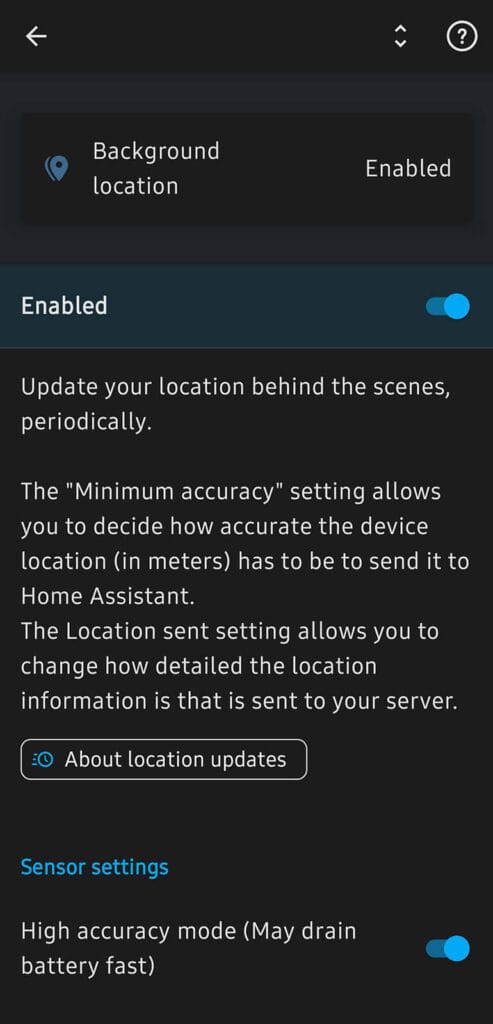
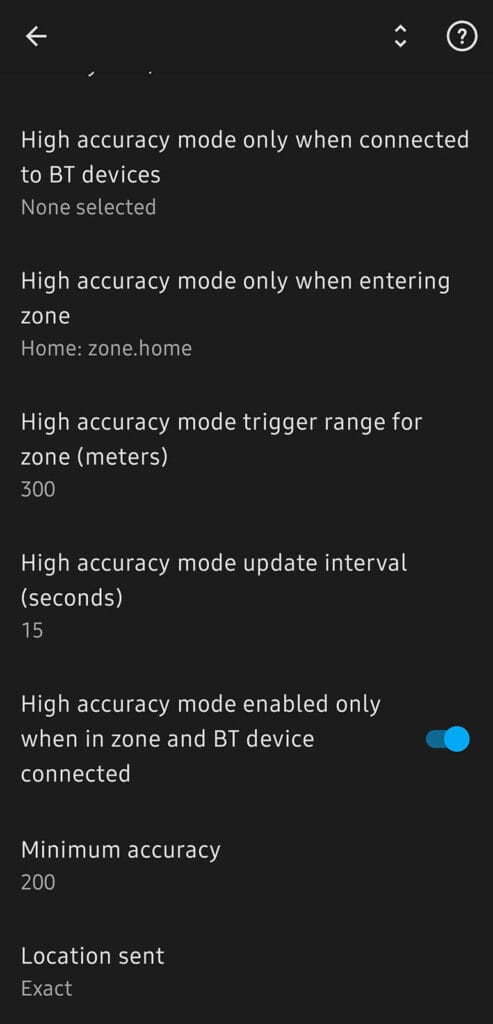
The app labels it plainly as “may drain battery fast.” Turning it on keeps the GPS radio active and forces a report on the high accuracy mode update interval you set, down to 5 seconds at the minimum. You can restrict when this actually turns on using a zone constraint, a Bluetooth constraint, or both together.
The Zone constraint lets you set a trigger range in meters around a specific zone. The Bluetooth constraint lets you pick specific paired devices, so high accuracy mode only activates once your phone connects to them. Combine the two, and you can require both conditions at once, for example only activating high accuracy mode when you are in a specific zone and connected to a specific Bluetooth device.
Background location also has a Minimum accuracy setting, defaulting to 200 meters, which rejects any update with a worse error margin than that. The Location sent setting controls how much detail goes to your Home Assistant server. Set to Exact, it sends your GPS coordinates on every update. Set to Zone, it sends just the zone name you are in, or not_home, without ever exposing a coordinate.
Location Zone and Single Accurate Location
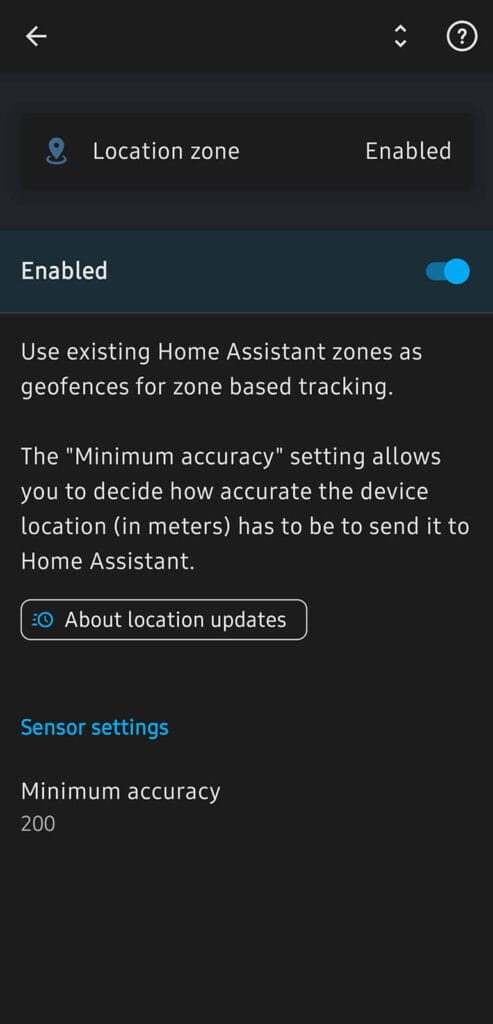
The Location zone sensor is what actually drives zone based tracking. Its description in the app states it uses existing Home Assistant zones as geofences, and this is what lets Android wake the app on a zone boundary crossing instead of checking location on a timer. Make sure this sensor is enabled.
Like Background location, this sensor has its own Minimum accuracy setting, also defaulting to 200 meters. This is the one that matters most for preventing false zone exits and entries, since a zone crossing reported from a low accuracy fix is exactly what causes a device tracker to flip when you have not actually moved. If you notice your zones triggering when you are still at home, raising this value is the first thing to check before touching anything else.
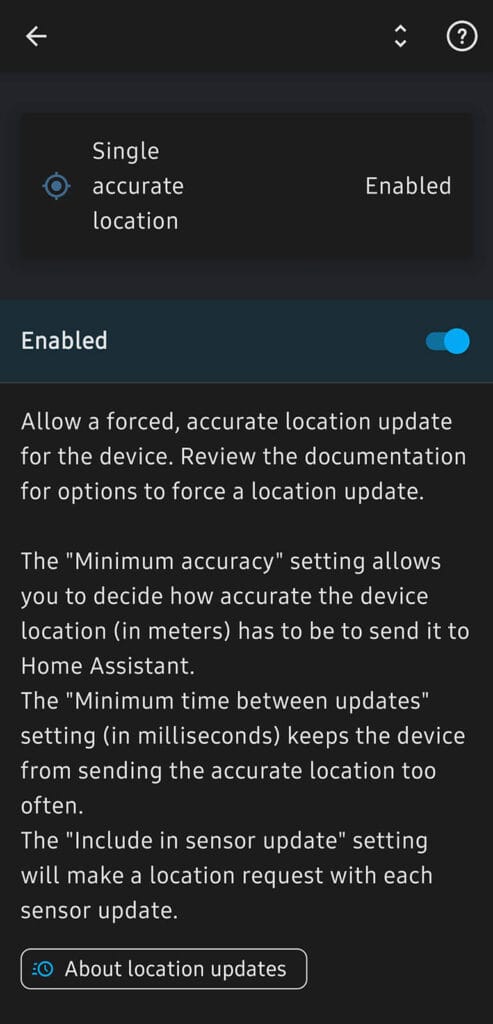
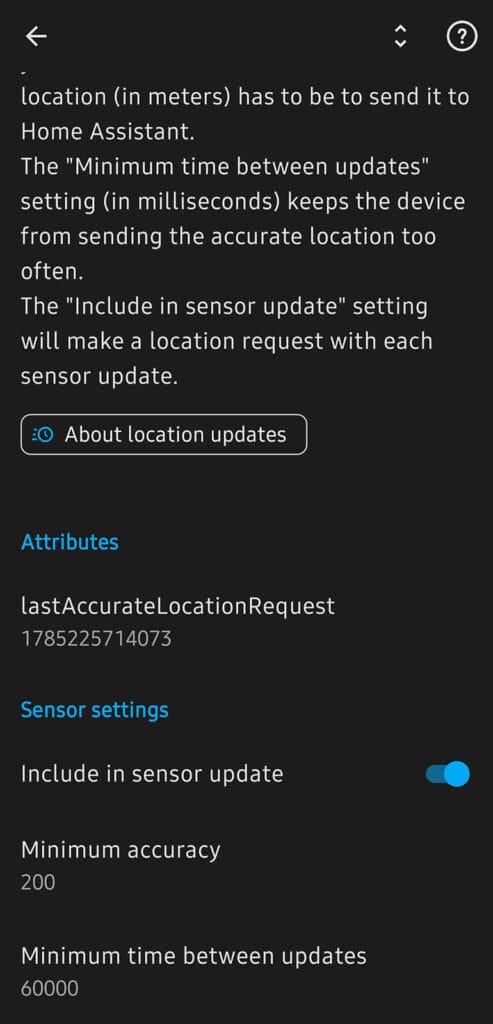
Single accurate location allows a forced, accurate location update for the device, and only gets used if a background report does not meet the accuracy criteria in its settings, or when it is explicitly requested through a notification command or an intent. Its settings are Minimum accuracy, Minimum time between updates, defaulting to 60000 milliseconds, or 60 seconds, and Include in sensor update, which bundles a location request in with every other sensor update when enabled. Its lastAccurateLocationRequest attribute tracks the timestamp of the last forced request.
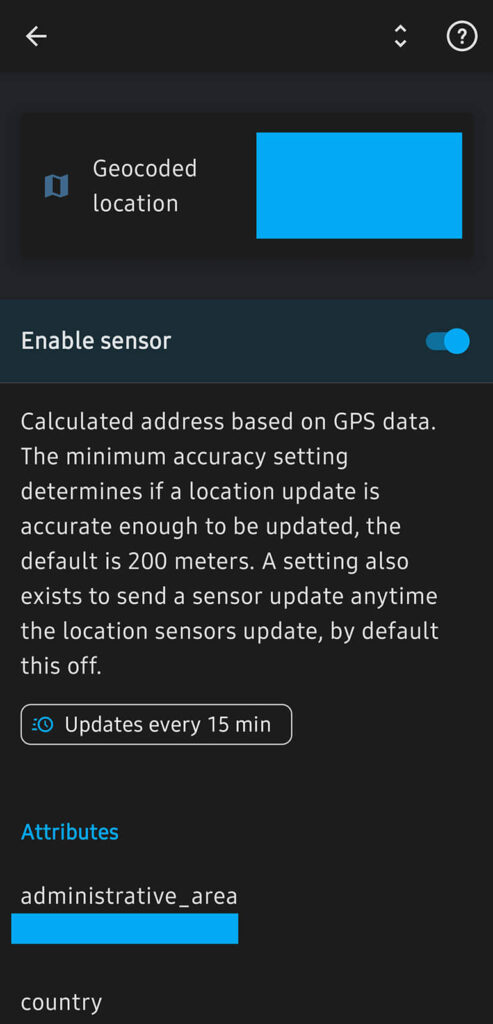
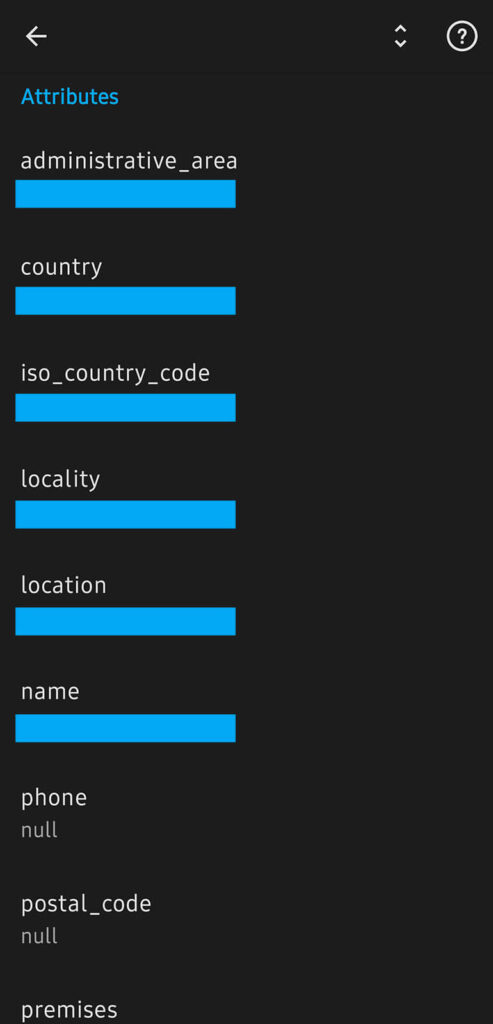
Geocoded location takes the GPS coordinates you already have and reverse geocodes them into a human readable address. Its attributes are things like country, locality, thoroughfare, postal_code, and so on. It doesn’t request a new location fix or do anything to improve accuracy, it just turns whatever coordinate is already available into “123 Main Street” instead of a latitude and longitude. It updates on its own roughly every 15 minutes, or ties to your other location sensors if you enable that option.
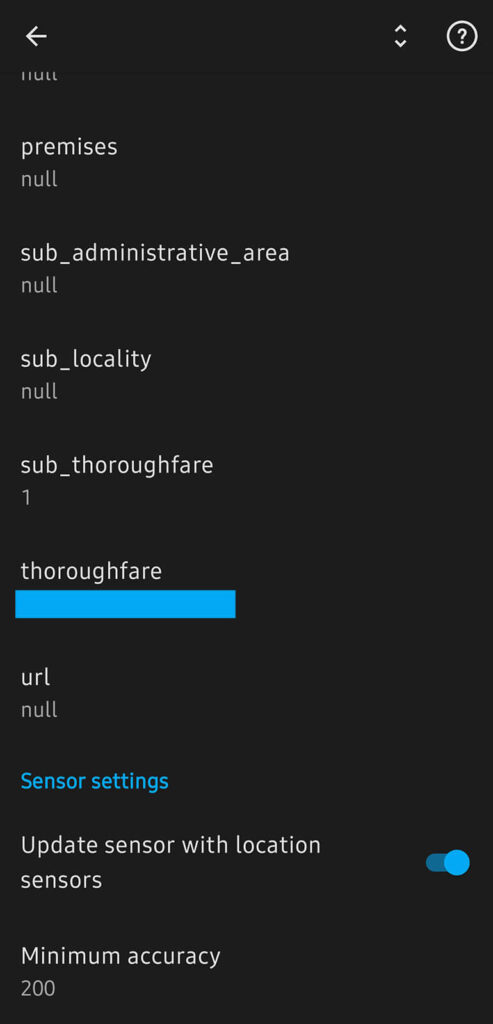
Configuring Home Assistant Location Tracking on iOS 
iOS hands over far less manual control than Android does. Apple keeps location access tightly locked down at the OS level, and most of what determines battery usage here comes down to two permission toggles rather than a settings menu inside the Companion App itself.
Background App Refresh and Manual Location Updates
First, go to Settings > General > Background App Refresh and make sure it is turned on for Home Assistant, both at the global toggle and the per app toggle. If Background App Refresh is off, the app cannot process location updates or run background sensor checks at all, regardless of what your Location Services settings say.
Beyond the automatic triggers, you can also force a location update by opening the app, pulling down to refresh from the top of any page, or long pressing the app icon and selecting the shortcut menu option for a refresh. These manual triggers are useful for testing that your zones and permissions are actually working before you rely on the automatic background triggers.
Location Permission and Precise Location
Next, go to Settings > Privacy & Security > Location Services > Home Assistant. Set the permission to Always. Anything less than Always means the app cannot report zone crossings while it is in the background, which breaks presence detection entirely.
On the same screen, make sure Precise Location is turned on. This is the iOS equivalent of Android’s location accuracy mode. With Precise Location off, iOS only shares an approximate area rather than an exact coordinate, which is not accurate enough for zone-based automations. None of the location tied sensors in the Companion App will report correctly if this toggle is off.
Zone Based Tracking and Significant Location Change
iOS does not offer a zone based tracking toggle the way Android does, since the OS handles this differently. Apple’s significant location change API decides on its own when your location has moved enough to be worth reporting, generally tied to nearby cell tower changes rather than a fixed distance. This is what keeps GPS from running constantly and is the main reason iOS tends to use less battery for location tracking than Android once permissions are set correctly.
The tradeoff is that you have no direct control over how sensitive this trigger is. If you notice zone crossings arriving late, the fix is not a setting inside the app, it is confirming Always and Precise Location are both set correctly, since a misconfigured permission is the most common cause of delayed updates on iOS.
Optimizing Home Assistant Location Tracking
There are two genuinely different ways to get an accurate location without leaving GPS running all day. One happens entirely on the device and reacts automatically. The other is triggered on demand from Home Assistant itself. Most setups benefit from using both, depending on the situation.
On-Device Automatic Location Updates
This only applies to Android, and it is the better answer for anything tied to a predictable location or device, arriving home, leaving home, connecting to your car. Under High accuracy mode in Background location, you can set High accuracy mode only when entering zone, which restricts GPS polling to a specific zone. Pair it with High accuracy mode trigger range for zone, set in meters, and the app builds an expanded version of that zone purely for this purpose. Crossing into the expanded zone switches high accuracy mode on, crossing into the real zone switches it back off, so you get a precise fix during the approach and nothing extra once you have actually arrived. Leaving works the same way in reverse.
There is also a Bluetooth option, High accuracy mode only when connected to BT devices, which ties the same behavior to a car stereo or any other paired device instead of a zone. Set both, and the app enables high accuracy mode when either condition is true by default, a separate combination toggle lets you require both at once, useful if you only want tight tracking while actually driving, not just walking through the same zone on foot.
Both constraint types require the Location zone sensor to be enabled, since the zones themselves come from there. This approach runs entirely on the device, with no round trip to your Home Assistant server and no dependency on an automation firing correctly, which makes it the more reliable option whenever it fits your use case.
On-Demand Location Polling from Home Assistant
For anything the constraints above cannot anticipate, like an automation based on time of day, or simply wanting to know where someone is right now, Home Assistant can request a location update directly through notification commands. This is the option I use personally via automations or scripts.
request_location_update works on both Android and iOS. Sending it attempts a location fix within about 5 seconds. On iOS this is hit or miss, since Apple limits how long the app is allowed to run in response to the notification, and a fix sometimes takes longer than the window allows. On Android, it works well once all the proper permissions are granted and battery restrictions removed. On success, sensor.last_update_trigger changes to Push Notification, which is a reliable way to confirm the request actually worked.
action:
  - action: notify.mobile_app_<your_device_id>
    data:
      message: "request_location_update"
Now, Android has two additional commands with no iOS equivalent that I use constantly. First, command_high_accuracy_mode turns high accuracy mode on or off directly, using turn_on or turn_off. There are also force_on and force_off options, and the difference only matters if you have zone or Bluetooth constraints configured, as covered above. In that case, force_on keeps high accuracy mode active until you send force_off or the constraints themselves go from active to inactive, and force_off works the same way in reverse. Without constraints set up, turn and force behave identically.
action:
  - action: notify.mobile_app_<your_device_id>
    data:
      message: "command_high_accuracy_mode"
      data:
        command: "turn_on"
You can also adjust the update interval while high accuracy mode is active, using high_accuracy_set_update_interval. The value is in seconds and cannot go below 5. After sending this, high accuracy mode restarts, which takes a few seconds to take effect.
action:
  - action: notify.mobile_app_<your_device_id>
    data:
      message: "command_high_accuracy_mode"
      data:
        high_accuracy_update_interval: 60
        command: "high_accuracy_set_update_interval"
The other Android-only command is command_update_sensors, which refreshes every enabled sensor if its state has changed since the last update. This does not force a fresh GPS fix the way request_location_update does, so it is the lighter option when you just need the phone to check in rather than pull a brand new coordinate.
action:
  - action: notify.mobile_app_<your_device_id>
    data:
      message: "command_update_sensors"
The official companion app documentation warns you not to call these on a timer. To me, this is a generic warning that requesting location updates too frequently can have a negative impact on battery life and device health. Treat every command as something you trigger for a specific reason, not something you schedule, and you should have no issues.
Summary
Location tracking in Home Assistant works best when you stop thinking of it as one setting and start treating it as two separate problems. On Android, the zone and Bluetooth constraints on high accuracy mode handle the predictable cases automatically, with no battery cost beyond the window they are actually active. On iOS, setting the correct permissions are most of the job, since Apple leaves you little else to adjust.
For everything else, notification commands let Home Assistant pull a location on demand. Minimum accuracy, on Android, is what keeps a bad GPS fix from being mistaken for a real move, and sensor.last_update_trigger is worth having enabled from day one, since it turns most troubleshooting into a quick glance rather than a guessing game.










I have my location accuracy set to high whenever my phone is connected to my car Bluetooth or motorbike helmet headset. It works great for my zone arrival automations
Yes, this is an excellent use case for those Bluetooth constraints (as they call it).
Conditions the high-accuracy location tracking without it running all the time and draining battery.
Great thinking!
P.S. What kind of bike do you drive? I’m currently with a V-Strom DL1050 🙂
One option to consider when at home is to have ESPHome or other iBeacon trackers in each room and have the phones use the companion app beacon tracker sensor to tell HA which ones are in range and what the signal strength is. Can be a bit tricky to optimize the location and broadcast power but the phone then is just being a passive BLE receiver which uses much less juice.
I’d like to suggest the Apple HomeKit method too, this has worked pretty well for us and especially when you have a less tech savvy partner who might not want to install Home Assistant and adjust a load of permissions.
In the Home app, you can setup automations to trigger when a specific person leaves or arrives. (Yes it’s not proper location tracking, but it allows me to see who is home or not and build automations around that).
I have setup custom switches in HA that are exposed through the HomeKit integration for “person_x_home” etc and then these get toggled on and off via the HomeKit automations. That way there’s less for each person to do and I can manage it all myself without worrying about device permissions etc (as long as they have Apple Home location sharing enabled).
I’m using Traccar. Way more precise on iOS. Especially when you live in a dense city with streets everywhere. Instead of a circle geofence you can just use a line geofence all the way in your street. This is just perfect.
And then use that infos into Haos.