

Home Assistant apps and integrations both extend what Home Assistant can do, but they work in different ways. Apps are separate programs that run next to Home Assistant, while integrations connect Home Assistant to devices and services. Home Assistant renamed add-ons to apps in release 2026.2 to make this split clearer and follow industry standards.
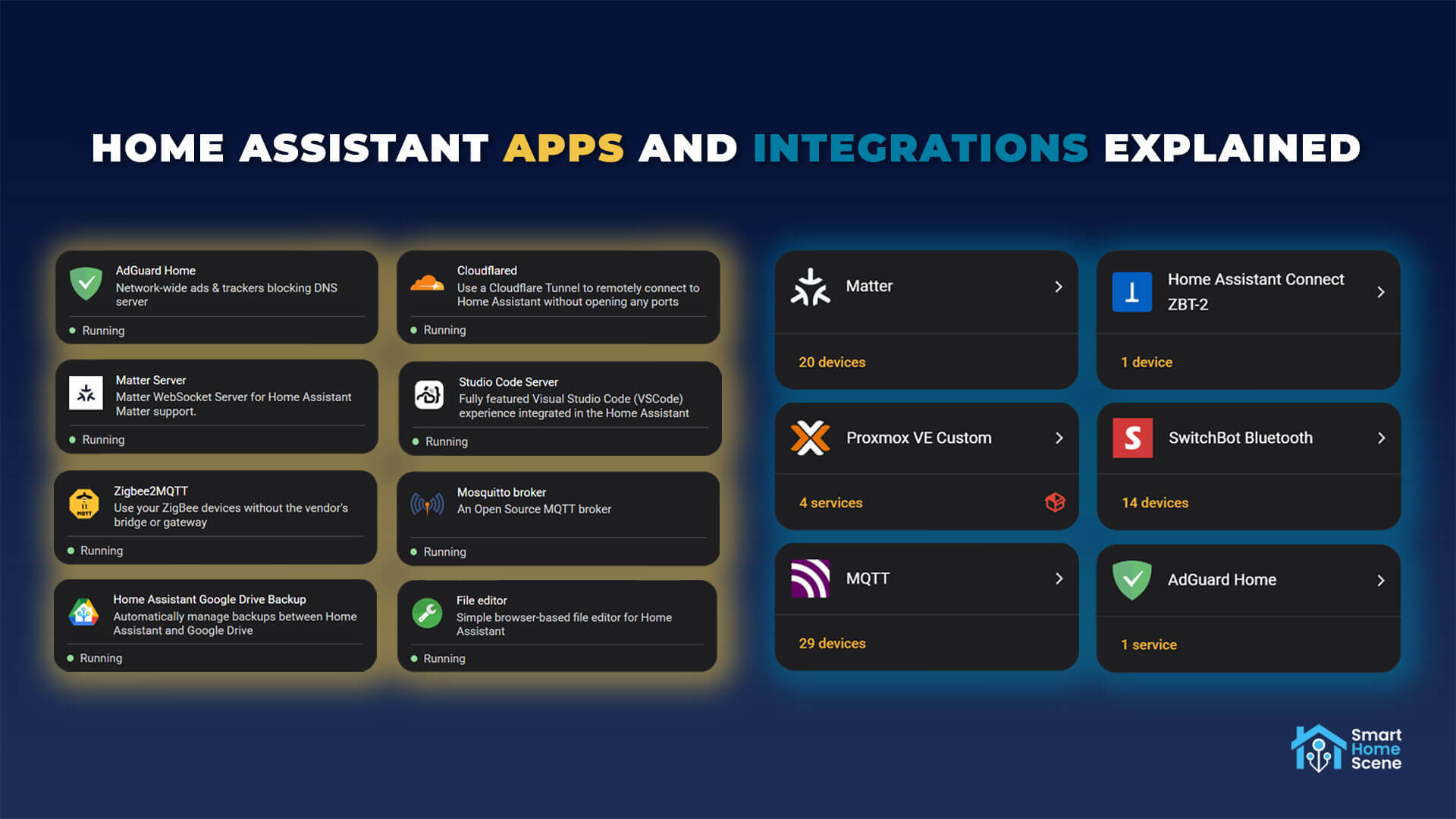
Since there is a lot of confusion around these terms, I decided to write an explaining article about what each one does, how they work together, and how to use both properly in your setup. If you are entirely new to this, check out Home Assistant Essentials: What To Do After Installation.
What Are Home Assistant Apps
An app is a standalone program that runs in its own container next to Home Assistant. The Supervisor installs, starts, updates and backs up each app. Apps do not add devices or entities by themselves. They run software that Home Assistant itself or your network can then use.
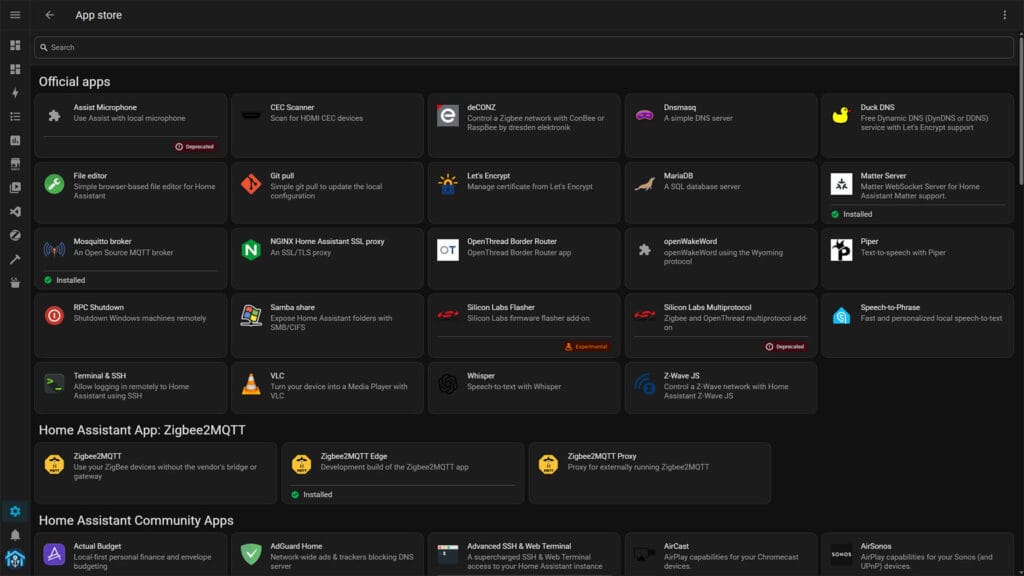
Most apps have their own web interface. Home Assistant displays it through ingress, so you can open the app from the sidebar without exposing another port on your network. For instance, Studio Code Server and Zigbee2MQTT both work this way.
Every app uses its own CPU, memory and storage. On my own instance I run Zigbee2MQTT, Mosquitto, Cloudflared, Studio Code Server, Tailscale, Piper, Whisper, AdGuard Home, Uptime Kuma, Matter Server and the ha-mcp MCP Server. Each one is a separate program with its own logs, configuration and update cycle.
Apps are installed from repositories. Home Assistant OS includes two by default, the official app repository and the community app repository. You can add third-party repositories too, which I cover in the install section below.
Why Home Assistant Renamed Add-ons to Apps
Home Assistant renamed add-ons to apps in release 2026.2, published in February 2026. The change was mainly cosmetic, as the functionality or the apps themselves did not change. Every add-on you had before the update kept running as an app afterwards.
As Home Assistant devs themselves put it, the reason for the rename was user confusion. New users opened Settings and saw “Add-ons” next to “Devices & Services”. Both names suggest something you add to extend Home Assistant, so people often went digging for an add-on when they needed an integration, or the other way around.
Frenck Nijhof proposed the rename in late 2025. His argument was simple. Apps run software next to Home Assistant, while integrations bring devices and services into it. Phones and TVs already use the word app for standalone software, so the new term matches what users expect.

The same release moved the Apps panel into the Home Assistant frontend. The Supervisor used to serve this panel as a separate process. The old name still exists under the hood. App repositories keep the addon naming in folders and config keys for backwards compatibility, so you will still see it in GitHub URLs and documentation for a while.
What Are Home Assistant Integrations
An integration is code that runs inside Home Assistant Core. It connects Home Assistant to a device, a service or a protocol. It then turns that connection into devices, entities or actions you can use in automations and dashboards.
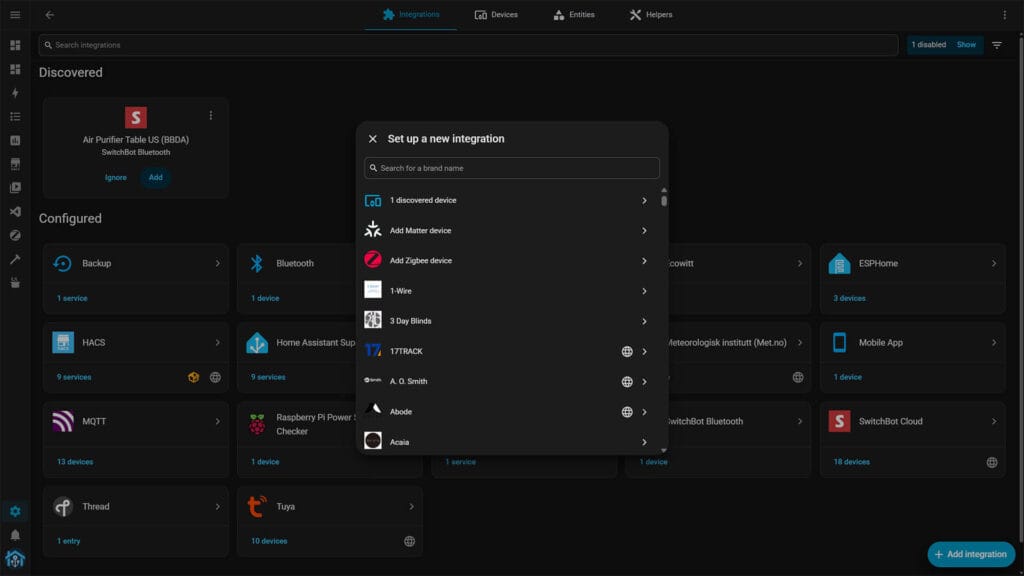
Most integrations are built into Home Assistant. You add them from Settings > Devices & services > Add integration, and many are discovered automatically on your network. Most use a setup flow in the UI, and a few still need YAML.
Integrations are lightweight compared to apps. They share the Home Assistant process and do not need their own container. They also work on every installation type, including Home Assistant Container.
Custom integrations are written by the community and are not part of Home Assistant Core. They install into the custom_components folder, either through HACS or manually.
Home Assistant Apps vs Integrations Compared
The table below shows the key differences between apps and integrations in Home Assistant.
| Apps | Integrations | |
|---|---|---|
| What it is | A standalone program in its own container | Code that runs inside Home Assistant Core |
| What it does | Runs software in parallel with Home Assistant | Connects Home Assistant to devices and services |
| Creates entities | No, not by itself | Yes |
| Where to install | Settings > Apps | Settings > Devices & services |
| Managed by | Supervisor | Home Assistant Core |
| Resource use | Own CPU, memory and storage | Shares the Home Assistant process |
| Installation types | Home Assistant OS | All installation types |
| Community source | Custom app repositories | HACS |
| Examples | Zigbee2MQTT, Matter Server, Studio Code Server | ZHA, MQTT, Matter, SwitchBot Bluetooth |
In short, an app runs something and an integration connects something. If you want a device to show up in Home Assistant, you always need an integration. An app only comes into play when the software that talks to the device has to run somewhere.
How Apps and Integrations Work Together
The most common Home Assistant setups need both. The app runs the software, and the integration connects that software to Home Assistant. The Matter Server app and integration are great examples of this setup.
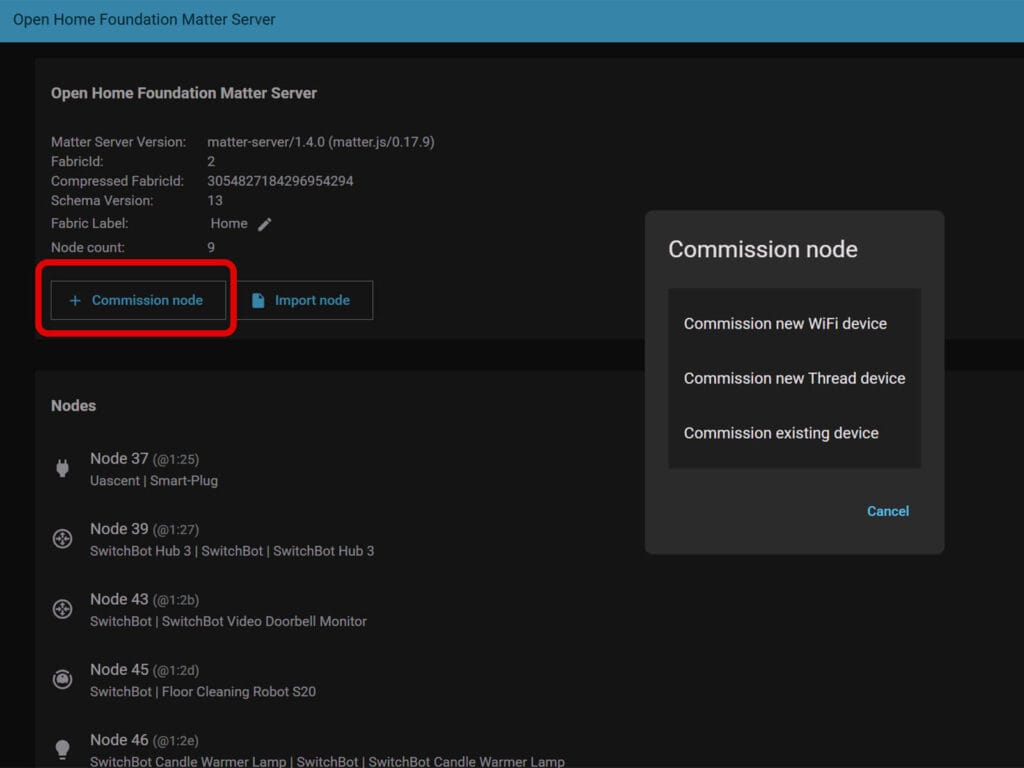
The Matter Server app runs the Matter controller as a separate process next to Home Assistant. The Matter integration connects to that server and turns every paired device into entities. When you pair a Matter device, the Matter Server adds it to its network, and the device appears in Home Assistant ready to use.
If you run Zigbee2MQTT in Home Assistant, you already use two apps and one integration together. The Zigbee2MQTT app talks to your coordinator and publishes every Zigbee device as MQTT messages. The Mosquitto app is the broker that carries those messages. The MQTT integration subscribes to the broker and creates the devices and entities in Home Assistant. Remove any one of the three, and your Zigbee2MQTT devices disappear from Home Assistant.
There are some apps that do not need integrations to function. For instance, Studio Code Server is an editor for your configuration files. Cloudflared and Tailscale provide remote access to Home Assistant. They work on Home Assistant, not inside it, so there is nothing to integrate.
The reverse is also true, since most integrations need no app at all. A SwitchBot Bluetooth device, a Shelly relay or an ESPHome device connects directly through its integration. Home Assistant talks to the device itself, with no extra software running in between.
Integrations also do not care where the app runs. The MQTT integration connects to Mosquitto whether it runs as an app, in a Docker container or on another machine. That is why you can move Zigbee2MQTT out of Home Assistant without losing a single device.
Why Apps Are Missing on Some Installations
Apps require the Supervisor, and Home Assistant OS is the only supported installation type that includes it. The official documentation states that apps are only available on Home Assistant OS, and that Home Assistant Container has no access to them. If your Settings menu has no Apps entry, you are running Container.
Home Assistant Supervised also supported apps, but it is no longer an installation option. Home Assistant deprecated the Supervised and Core installation methods in release 2025.6 and ended support with 2025.12. Home Assistant OS and Container are now the only two supported installation types.
Container users still have every option. Every app is a Docker container underneath, and most projects publish a standalone image. You run Mosquitto, Zigbee2MQTT or Matter Server as separate containers and simply point the matching integration at them. You lose the one-click install, ingress and Supervisor backups, but everything else works the same.
How to Install Home Assistant Apps
Apps install from the app store under Settings > Apps. Apps from the default repositories are ready to install. Apps from third-party repositories need one extra step first.
- Go to Settings > Apps and select Install app.
- Search for the app and open it.
- Select Install and wait for the download to finish.
- Open the Configuration tab and set any required options.
- Go back to the Info tab, turn on Start on boot and Watchdog, and select Start.
- Turn on Show in sidebar if the app has a web interface.
Adding a Custom App Repository
Anyone can publish an app repository on GitHub. Adding one gives you access to apps that are not in the default store. Zigbee2MQTT is the best-known example of this, as it is not in the official or community repository, so you add its own repository first.
- Install the Mosquitto broker app from the official repository and start it.
- Home Assistant auto-discovers it and sets up the MQTT integration.
- Go to Settings > Apps > Install app.
- Open the three-dot menu in the top right corner and select Repositories.
- Paste
https://github.com/zigbee2mqtt/hassio-zigbee2mqtt, select Add and then Close. - Find Zigbee2MQTT in the new repository section and install it.
- Set your coordinator in the Configuration tab and start the app.
Once Zigbee2MQTT starts, the MQTT integration picks up its discovery messages and your Zigbee devices appear in Home Assistant. The same process works for any third-party app, including Cloudflared and the ha-mcp MCP Server.
It should be clear by now that you should only add repositories you trust. Apps run with access to your Home Assistant system and your network, and Home Assistant does not review third-party app code.
Where Does HACS Fit In
HACS is short for Home Assistant Community Store. Despite the name, it is not an app store. HACS is itself a custom integration, and it installs custom integrations, dashboard cards and themes.
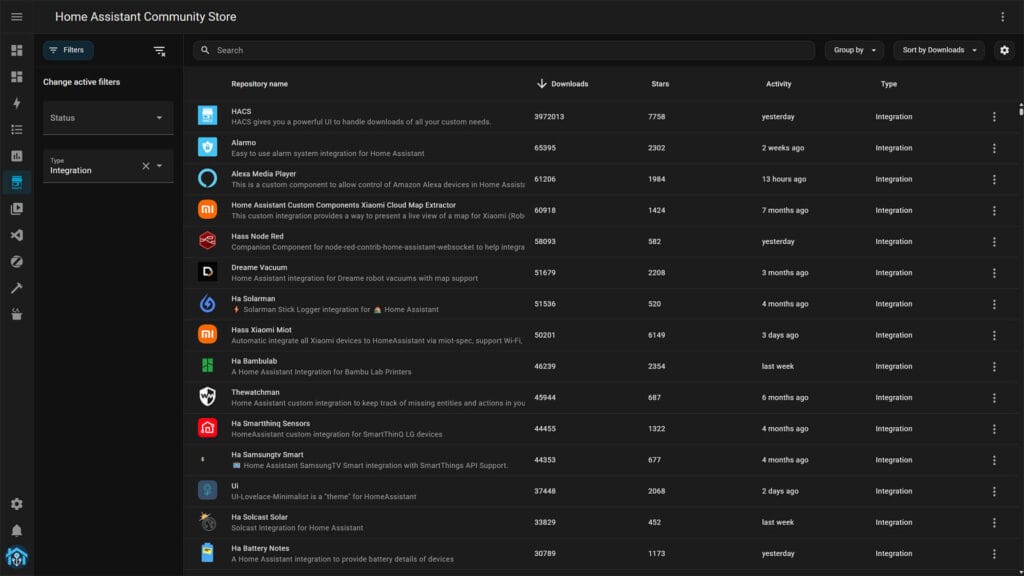
HACS cannot install apps. Apps only come from app repositories under Settings > Apps. Everything HACS installs runs inside Home Assistant Core, so it works on Container installations too.
Some projects ship in both forms, which shows the difference well. For instance, the ha-mcp MCP Server I run is available as an app and as a HACS custom component. The app runs the server in its own container on Home Assistant OS. The custom component runs the same server inside Home Assistant on every installation type, and the project now recommends it as the default.
Uptime Kuma is another good example. It used to need a HACS integration to get its monitors into Home Assistant. Since release 2025.8, it has a core integration built from scratch, and the Uptime Kuma app still runs the monitoring tool itself.
FAQ
Are Home Assistant add-ons and apps the same thing?
Yes. Home Assistant renamed add-ons to apps in release 2026.2. The software, repositories and behavior stayed the same. Only the name in the UI and documentation changed.
Can I install apps on Home Assistant Container?
No. Apps need the Supervisor, which only Home Assistant OS includes. On Container, you run the same software as separate Docker containers and connect it with the matching integration.
Does removing an app also remove its integration?
No. Apps and integrations are managed separately. If you uninstall an app, remove the integration that connected to it from Settings > Devices & services as well.
Are apps included in Home Assistant backups?
Yes. A full backup includes your installed apps and their data. A partial backup lets you choose specific apps, which is useful for rolling back a single app without touching the rest of your system.
Is HACS an app or an integration?
HACS is a custom integration. It installs custom integrations, dashboard cards and themes, but it cannot install apps.
Do I need an app to use an integration?
Only when the integration connects to software that has to run somewhere. Zigbee2MQTT needs an MQTT broker, so you run the Mosquitto app or a standalone broker. Integrations for devices like a Hue bridge or an ESPHome board need no app at all.









Thanks for another nice write-up.
I was wondering if you can share a bit more details about your setup. As mentioned in the article you are running several services. Do you run all as apps or integrations directly in HA or perhaps as separate Docker containers?
Just for reference, after over 2 years break, I’m back on HA wagon with new approach (hardware+software) but still learning a lot with many trials and errors in this new setup 🙂